
PUBG Mobile Gameloop Best Performance Settings Guide
Complete guide to optimizing graphics, FPS, controls, and network settings for PUBG Mobile on Gameloop emulator. Maximize your performance and dominate the battlefield.
Introduction: Truly Optimizing PUBG Mobile on Gameloop
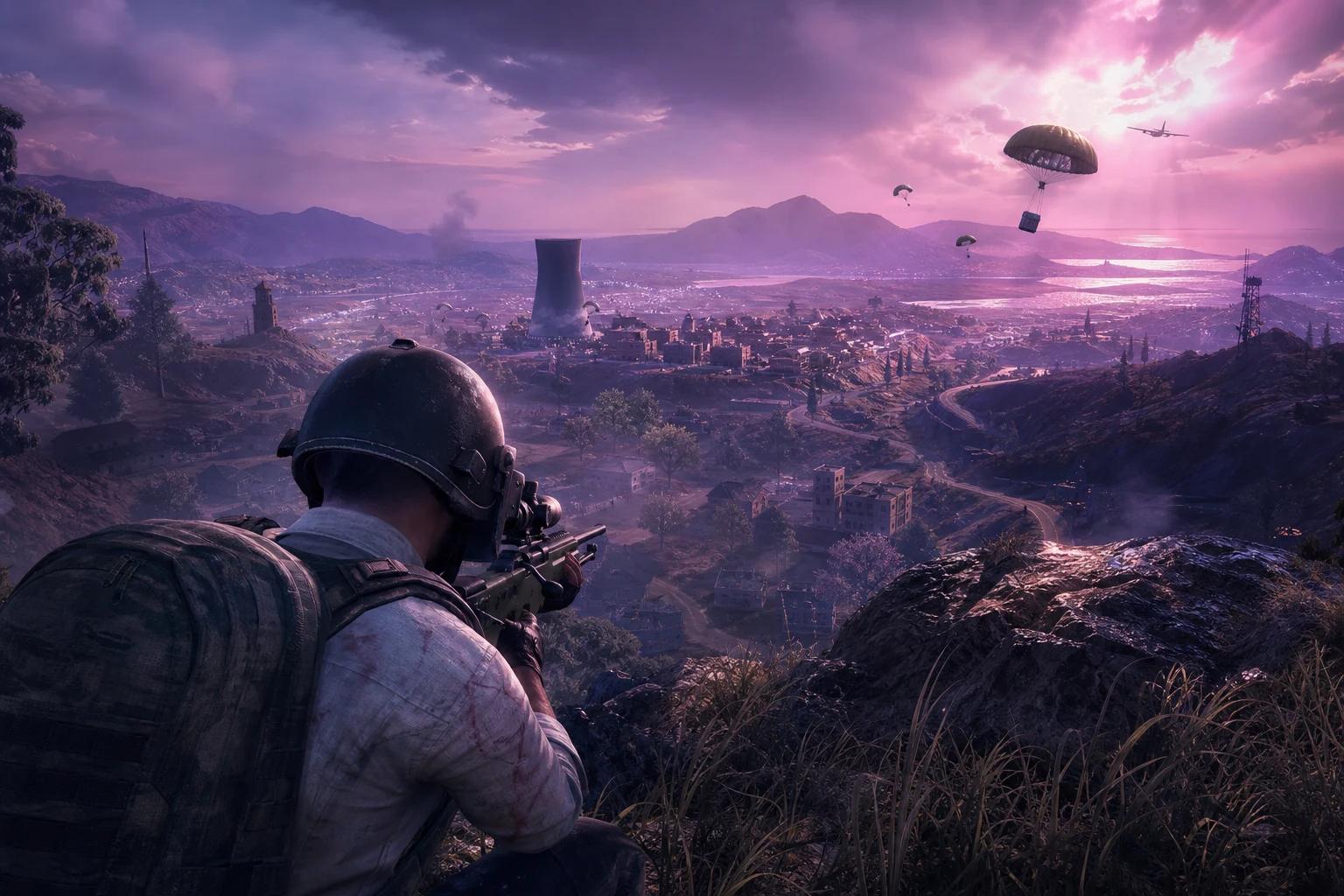
PUBG Mobile continues to be one of the undisputed peaks of the mobile gaming world. Millions of players battle for survival every day on the Erangel, Miramar, and Livik maps. But what makes the difference in this struggle is not just reflexes; it's the quality of the platform you use, your settings, and your setup. The Gameloop emulator stands out as the official and most popular way to play PUBG Mobile in a PC environment. So what does it really mean to optimize Gameloop?
Most players install Gameloop, enter the game with default settings, and ask "why is this so laggy?" Yet with proper configuration, you can achieve night-and-day differences on the same hardware. Every parameter, from graphics quality to FPS limits, from network latency to control sensitivity, directly impacts your in-game experience.
Think about it: the difference between a player running at 60 FPS and one running at 90 or 120 FPS isn't just visual—it's critical in terms of reaction time and precision. Low latency provides a smoother experience when tracking targets. Incorrect graphics settings both reduce performance and in some cases make it harder to spot enemies.
In this guide, we'll cover the best setting configurations you can apply for PUBG Mobile on Gameloop, profiles based on playstyle, and common configuration mistakes. Whether you're looking for maximum performance on a low-end PC or want to squeeze every frame from high-end hardware—the settings here give you a solid starting point.
Also, if you want to take your in-game advantage to the next level, don't forget to check out ForceCheat's PUBG Mobile Gameloop product category. The right software + the right settings combination puts you permanently one step ahead of your competitors.
If you're ready, let's unlock Gameloop's true potential.
Summary: To optimize PUBG Mobile on Gameloop, lower graphics settings, increase FPS limit to 90-120, minimize network latency, and adjust control sensitivity based on your playstyle. Choosing the right profile can double your performance.
Gameloop Emulator Basic Settings
System Resources and Hardware Allocation
When you open Gameloop, the first thing you should do is access the emulator's own settings. Go to "Settings" → "Engine" tab from the menu in the top left corner. Here you can manually set the CPU core count and RAM allocation.
| Setting | Recommended Value | Why |
|---|---|---|
| CPU Cores | 4 cores (on 8-core system) | Maximum emulator performance without choking the system |
| RAM Allocation | 4096 MB (4 GB) | Ideal memory space for PUBG Mobile |
| Resolution | 1280x720 | Golden middle ground for performance/visuals balance |
| DPI | 240 | Sharp image, low render load |
| Render Engine | DirectX 11 | Most stable option on modern GPUs |
Closing Background Processes
Every application open in the background while Gameloop runs consumes CPU and RAM resources. Before entering the game, open Task Manager (Ctrl+Shift+Esc) and terminate unnecessary processes. Browser tabs, Discord video streams, and cloud backup applications in particular consume significant memory. Just this step alone can yield an average 10-15 FPS gain.
Also, don't forget to set your Windows Power Plan to "High Performance" mode. You can change this setting by going to Control Panel → Power Options. Especially on laptops, this change directly affects in-game frame rates.
PUBG Mobile Graphics and FPS Settings
In-Game Graphics Configuration
Once you enter PUBG Mobile's graphics menu, you need to adjust each parameter consciously. The "let it look beautiful" approach often leads to FPS drops and latency. The table below shows a performance-focused configuration:
| Setting | Recommended Value | Why |
|---|---|---|
| Graphics Quality | Smooth | Lowest render load, maximum FPS |
| Frame Rate | Extreme / Ultra | Required for 90-120 FPS |
| Style | Classic | High color saturation, good target visibility |
| Shadows | Off | Reduces GPU load by 20% |
| Anti-Aliasing | Off | Edge smoothing wastes unnecessary GPU |
| Brightness | 60-65% | Enemy silhouettes appear more distinct |
How to Get 120 FPS on Gameloop?
This is one of the most frequently asked questions by players. To achieve 120 FPS on Gameloop, several conditions must be met simultaneously:
Step 1: Enter the "Engine" tab from Gameloop emulator settings and set the FPS limit to "120". This option may appear under "High Frame Rate" label in some versions.
Step 2: From PUBG Mobile in-game settings, set the Frame Rate option to "Ultra" (90 FPS) or if available "Extreme" (120 FPS). Note: The 120 FPS option may not appear in all device profiles; setting Gameloop's device emulation to "iPhone 13 Pro" or "Asus ROG Phone 6" can unlock this option.
Step 3: Make sure your monitor's refresh rate is at least 120 Hz in Windows. Verify this value from your graphics card driver as well.
Step 4: Keep graphics quality in "Smooth" mode. High graphics + 120 FPS combination is unsustainable on mid-range hardware; you must choose one.
Control and Sensitivity Settings
Keyboard-Mouse Configuration
One of Gameloop's biggest advantages is enabling keyboard and mouse use. However, default key bindings aren't optimal for most players. The following configuration represents a layout optimized for fast-paced action:
| Action | Recommended Key | Why |
|---|---|---|
| Fire | Left Mouse Button | Natural reflex, fastest response |
| Aim (ADS) | Right Mouse Button | Standard FPS experience |
| Crouch | C | Close to finger position, quick access |
| Prone | Z | Easy reach for emergency movement |
| Inventory | Tab | Universal standard |
| Use Vehicle | F | Nearby key, quick boarding |
Mouse Sensitivity and DPI Adjustment
Mouse DPI directly affects in-game sensitivity settings. A high DPI + low in-game sensitivity combination generally provides a smoother experience than low DPI + high sensitivity. Recommended starting point: 800 DPI, in-game sensitivity between 40-50%. Then play a few matches and find your comfort zone, making fine adjustments.
For camera sensitivity, ADS (when aiming) and free look can be adjusted separately. Keeping ADS sensitivity slightly lower (around 30-40%) makes target tracking easier in long-range engagements.
Profiles by Playstyle
Profile 1: Aggressive Player (Rush Playstyle)
You rush through every door, seeking dominance in close-range fights? Then high FPS and low latency should be your priority. Push graphics to the lowest level, maximize FPS. Keep mouse sensitivity between 55-65%—enough flexibility for quick turns. Optimize in-game audio settings too: keep footsteps and gunfire sounds clear by raising effect volume, mute music.
Profile 2: Balanced Player (Balanced Playstyle)
You want to be comfortable in both long-range and close-range fights. For this profile, you can keep graphics at "HD" level and lock FPS between 60-90. Mouse sensitivity around 40-50%, ADS sensitivity between 30-40% is ideal. This configuration provides consistent experience on most hardware and keeps you comfortable in both indoor and open-field engagements.
Profile 3: Cautious / Sniper Player (Passive/Sniper Playstyle)
Top-down management, long range, patience. For this style, increasing view distance is critical. From graphics settings, maximize "View Distance". Keep mouse sensitivity low (20-30%), and you can lower ADS sensitivity to 15-20% especially when using 8x scope. Keeping FPS stable at 60 is sufficient for this playstyle; you can save resources to improve system stability.
Taking Performance to the Next Level with ForceCheat Software
Settings optimization creates a strong foundation; but for those who want to make a real difference, ForceCheat's Gameloop-specific software solutions offer a different dimension. The platform's products are specially developed to work seamlessly in the Gameloop environment and are regularly updated.
Cougar Bypass operates with advanced bypass technology in the Gameloop environment, offering a solution optimized to bypass detection systems. Installation is simple, interface is clean, and configuration is quick.
For those seeking a more comprehensive experience, the NixLoop Full package brings together ESP visualization, aimbot support, and various auxiliary modules under one roof. It offers an interface suitable for both beginners and experienced users.
If you're only looking for visual advantage, the NixLoop Lite (ESP) package displays opponent positions and inventory information on screen, significantly improving map awareness. It provides a critical advantage especially for surviving until the final circle on large maps.
If you're looking for a bypass solution, check out the NİX Bypass product; optimized to work with Gameloop's security layers, this product is supported with regular updates.
Common Setting Mistakes
Mistake 1: Maxing Out All Graphics
The vast majority of new players max out all graphics settings to "look beautiful". This can drop FPS below 30 on mid-range hardware, making the game nearly unplayable. Getting the balance right between visual quality and performance provides a much more satisfying experience in the long run.
Mistake 2: Allocating Too Little RAM to the Emulator
Gameloop defaults to 2 GB RAM allocation. Current versions of PUBG Mobile need more, causing freezes and latency in-game. You need to allocate at least 3 GB, preferably 4 GB RAM. You can adjust this value manually in emulator settings. If your PC has 8 GB total RAM, allocating 4 GB to Gameloop won't break system balance.
Mistake 3: Ignoring Windows Power Plan
When your computer runs on "Balanced" power plan, the CPU takes longer to reach full capacity. Switching to "High Performance" plan makes a noticeable difference, especially at game start and during intense firefights.
Mistake 4: Not Optimizing Network Settings
High ping can make even the best graphics and FPS settings meaningless. Use ethernet connection instead of Wi-Fi if possible. Activate "Low Latency Mode" from Gameloop's network settings. Also, changing your DNS server to Google (8.8.8.8) or Cloudflare (1.1.1.1) can reduce ping by 10-20 ms in some cases.
Mistake 5: Using Outdated Emulator Version
Gameloop receives regular updates that may include performance improvements, bug fixes, and new game compatibility. Staying on an old version invites both performance and compatibility issues.
Conclusion
Playing PUBG Mobile on Gameloop, with proper configuration, goes far beyond the mobile experience. The keyboard-mouse combination, high FPS, and optimized graphics settings put you in a concrete advantage position against competitors. But for this advantage to be sustainable, you must configure every layer correctly: emulator base settings, in-game graphics configuration, control sensitivity, and network optimization form a complementary whole.
Profile selection based on playstyle is also an element not to be overlooked. An aggressive rush player and a patient sniper shouldn't use the same settings. Know your playstyle, apply the appropriate profile, and make fine adjustments after a few test matches.
Pay attention to common mistakes: excessive graphics load, insufficient RAM allocation, wrong power plan, and neglected network settings—they all silently undermine your performance. If you follow the steps in this guide sequentially, you'll achieve a much smoother and more competitive experience on the same hardware.
If you want to go beyond settings optimization and make a real difference, you can explore all products in ForceCheat's PUBG Mobile Gameloop category. From Cougar Bypass to NixLoop Full, solutions for every need await you. If you're interested in other games, check out our Valorant category or League of Legends category.
Don't forget to check our related guides: Rust Triggerbot Not Working? 7-Step Solution and Map Control with ESP in Rust will guide you on optimization across platforms beyond emulators.
Frequently Asked Questions (FAQ)
How do I get 120 FPS on Gameloop?
Enter the "Engine" tab from Gameloop emulator settings and set the FPS limit to 120. Then go to PUBG Mobile in-game graphics settings and set Frame Rate to "Ultra" or "Extreme". Changing device emulation to "iPhone 13 Pro" or "Asus ROG Phone 6" can unlock the 120 FPS option. Finally, make sure your monitor's refresh rate is 120 Hz or higher.
How much RAM is enough for PUBG Mobile on Gameloop?
A minimum of 3 GB RAM allocation is required, but 4 GB is recommended for a seamless experience. You can adjust this value manually from emulator settings. If your PC has 8 GB total RAM, allocating 4 GB to Gameloop won't disrupt system balance.
How do I reduce ping on Gameloop?
Use ethernet connection instead of Wi-Fi. Change your DNS server to 8.8.8.8 (Google) or 1.1.1.1 (Cloudflare). Activate "Low Latency Mode" from Gameloop's network settings. Also close bandwidth-consuming applications in the background (torrents, cloud backups).
What's the best render engine on Gameloop?
DirectX 11 is the most stable and performant option for most modern GPUs. Those using older or integrated graphics may find OpenGL more compatible. While DirectX 12 may offer higher performance on some systems, it can experience stability issues so use with caution.
Do Gameloop graphics settings affect game visibility?
Yes, they directly affect it. Especially brightness, shadow, and color filter settings can significantly change enemy visibility. Turning off shadows both improves performance and in some cases makes enemy silhouettes more visible. Keeping brightness between 60-65% makes target tracking easier in overly bright or dark environments.
Are ForceCheat PUBG Mobile software compatible with Gameloop?
Yes, ForceCheat's PUBG Mobile products are specifically optimized and tested for the Gameloop environment. Products like Cougar Bypass and NixLoop Full are regularly updated to work seamlessly with Gameloop's security layers.
Share this post
Related Posts

Hunt Showdown ESP Not Working? 7-Step Enemy Location Fix
Hunt Showdown ESP not showing enemy locations? Overlay won't open, wallhack not working? We solve the 7 most common issues step by step.
Will to Live Cheats: 5 Ways to Master Survival
Master Will to Live with aimbot and ESP cheats! Discover 5 proven survival strategies to dominate PvP, optimize farming, and stay ahead of rivals with advanced cheat tools.
Hunt Showdown Triggerbot Setup: Automatic Fire Guide in 5 Steps
Having trouble setting up triggerbot in Hunt Showdown? Automatic fire not working or experiencing lag? This guide solves every issue in 6 steps with proven solutions.