
Hunt Showdown ESP Not Working? 7-Step Enemy Location Fix
Hunt Showdown ESP not showing enemy locations? Overlay won't open, wallhack not working? We solve the 7 most common issues step by step.
Introduction: Why Hunt Showdown ESP Doesn't Work and What You Should Do
Hunt Showdown is a game where dark swamps, narrow village streets, and fog-covered forests hide competitors ready to ambush you around every corner — a game where tempo and information management are vital. Knowing exactly where your enemy is — inside a building, on a roof, or hiding behind that bush — makes the difference between being the last person standing and becoming another corpse in the bayou. This is where ESP (Extra Sensory Perception) comes in: it shows you players behind walls, NPC threats, and even reward locations in real time on your screen.
But sometimes ESP can let you down at the most critical moments. The overlay won't open, enemy boxes don't appear, color tags malfunction, or nothing works the same after a game update. These issues can stem from misconfigured settings, a missing driver update, or conflicts with the game's own render engine. In short: the problem usually lies in your setup, your system, or your configuration — and the vast majority can be fixed in just a few minutes.
In this guide, we address the 7 most common issues with the ESP module of the products we offer in our Hunt Showdown cheats category. Each solution contains clear steps to help you identify the symptom, fix the issue, and get your ESP running at full capacity. If you're using Arcane 1896 or one of our Hunt Showdown products, these steps were prepared specifically for you.
You may notice that ESP becomes temporarily unresponsive right after the game receives a major patch — this is normal and usually fixed quickly with an updated loader version. Beyond that, DirectX version incompatibility, antivirus interference, incorrect injection order, or overlay rendering to the wrong screen are also common technical issues. We've arranged the solutions below from most likely to rarest; you'll probably solve your issue in the first two steps.
Summary: If Hunt Showdown ESP isn't working, first run the loader as administrator and restart the game. If the problem persists, disable your antivirus, check DirectX mode, and verify overlay screen settings. Current drivers + correct injection order solves most issues.
Solution 1: Run the Loader as Administrator
Symptom
The ESP overlay won't open at all, no boxes or labels appear on screen. The loader closes without error when launched, or you get a warning like "injection failed."
- Right-click on the loader file (e.g.,
ForceCheat_Loader.exe). - Select "Run as administrator."
- If a Windows UAC window appears, click "Yes."
- After the loader fully loads, launch Hunt Showdown — loader first, then game.
- Once the game reaches the main menu, enter a match and check if the ESP overlay appears.
Expected result: The loader gains the necessary system process access permissions, injection completes successfully, and the overlay becomes visible in your first match. This step alone solves approximately 40% of ESP issues.
Solution 2: Temporarily Disable Antivirus and Windows Defender
Symptom
The loader opens but closes within seconds. Or the loader appears to be running but the overlay never renders on the game screen. Sometimes you see a "threat blocked" notification in Windows Security Center.
- Open Windows Security settings → "Virus & threat protection" → temporarily turn off "Real-time protection."
- If you use third-party antivirus (Avast, Bitdefender, Kaspersky, etc.), completely close it from the system tray — not just "pause," but fully close it.
- Add the loader folder to your antivirus "exclusion list" (whitelist): usually done via Settings → Exclusions → Add folder.
- Run the loader again as administrator and open the game.
Expected result: The antivirus stops quarantining the injection file, the loader process runs uninterrupted, and the ESP module successfully loads into the game. After adding it to the exclusion list, you can turn your antivirus back on.
Solution 3: Check DirectX Version and Switch to Compatible Mode
Symptom
ESP boxes appear on screen but in wrong positions, flickering, or completely white/black. The overlay exists but doesn't align with enemy positions; it especially disappears in indoor areas or where fog effects are heavy.
Why This Happens
Hunt Showdown can run in both DirectX 11 and DirectX 12 modes. ESP overlays are mostly optimized for DX11. In DX12 mode, the render pipeline works differently, so the overlay layer may not bind properly.
- In your Steam library, right-click Hunt Showdown → "Properties" → "Launch Options."
- Type
-dx11in the box and save. - Close and restart the game.
- If your ForceCheat loader settings have a "Render Mode" option, select DX11 / Overlay mode.
- Enter a match and verify that the ESP image aligns properly.
Expected result: The overlay sits on the correct render layer, enemy boxes align with their actual positions, and flickering issues disappear.
Solution 4: Update Loader Version After Game Updates
Symptom
It worked yesterday, nothing shows today. Hunt Showdown received a major patch and ESP became completely unresponsive. The loader starts without error but there's no overlay.
- Log into your ForceCheat panel (customer panel).
- From the "Downloads" or "My Products" section, download the latest loader version for your Hunt Showdown product.
- Completely delete the old loader file — don't overwrite it.
- Extract the new loader to a clean folder and run it as administrator.
- ESP updates are typically released 12–48 hours after major game patches; follow panel announcements.
Expected result: The updated loader correctly reads the new game version's memory map, and the ESP module starts working again. As mentioned in our Hunt Showdown Triggerbot setup guide, checking the loader version after every major game update is the golden rule.
Solution 5: Fix Overlay Screen and Resolution Settings
Symptom
The ESP overlay opens but appears on the wrong monitor, or it's cut off at the edges of your game screen. In multi-monitor setups, the overlay appears on the secondary screen instead of the primary one.
Steps
- Run Hunt Showdown in Fullscreen mode — overlay binding issues occur more frequently in Windowed or Borderless Windowed modes.
- In the loader settings, set the "Target Display" or "Monitor Index" option to your primary monitor (usually 0 or 1).
- Verify that the game's resolution matches the resolution set in the loader. For example, if the game runs at 1920×1080 but the loader shows 2560×1440, boxes will render at wrong positions.
- In Windows Display Settings, confirm that your primary monitor is correctly selected (Settings → Display → "Make this my main display").
- After making changes, restart both the loader and the game.
Expected result: The overlay sits perfectly on your game screen, ESP boxes appear at correct positions and correct sizes.
Solution 6: Reconfigure Injection with Safe Mode
Symptom
None of the above steps worked. The loader runs, antivirus is off, you're in DX11 mode, but still no overlay. At this point, there may be a deeper conflict with the injection method or Windows security policy.
Clean Boot Procedure
- Open Task Manager (Ctrl+Shift+Esc) and terminate all processes related to Hunt Showdown and the loader.
- Restart Windows in Safe Mode with Networking (hold Shift while clicking Restart → Troubleshoot → Advanced → Startup Settings).
- In Safe Mode, run the loader as administrator and reset the configuration file (look for a "Reset Config" or "Default Settings" button if available).
- Return to normal mode, restart the loader, and this time open: loader first, then Steam, then Hunt Showdown — this order is critical.
- Wait 30 seconds while the game is at the main menu, then enter a match.
Expected result: With a clean configuration, the injection process completes without conflicts. This method is especially effective when multiple programs are interfering with your system simultaneously.
Solution 7: Update GPU Drivers and Visual C++ Redistributable Packages
Symptom
The overlay works sometimes, doesn't work other times. Especially during intense combat scenes or in large open areas, ESP boxes disappear or freeze. Your system sometimes shows an error like "d3d11.dll not found" or similar.
- NVIDIA users: Open GeForce Experience and update your driver. AMD users: Use AMD Software: Adrenalin Edition to install the latest driver.
- Download the latest Visual C++ Redistributable packages from Microsoft's official site (install both x64 and x86 versions).
- Run the DirectX End-User Runtime Web Installer — this step completes any missing DirectX components.
- Verify that .NET Framework 4.8 or higher is installed (Control Panel → Programs → Windows Features).
- After all updates, restart your system and test ESP.
Expected result: Missing system components are completed, overlay rendering becomes stable, and ESP boxes run uninterrupted throughout the match.
Still Not Fixed? Contact ForceCheat Support
You've completed all 7 steps above and ESP still isn't working? The issue is most likely a system-specific configuration conflict or a loader version that hasn't yet been adapted to a very recently released game update.
When contacting ForceCheat support, have this information ready: operating system version (Windows 10/11, build number), GPU model and driver version, product name you're using (Arcane 1896 or Hunt Showdown), loader version number, and exactly when the problem started. With this information, our support team can resolve your issue much faster.
You can also check our survival game cheating guide for general setup tips. You'll also find solutions from other players who experienced similar issues.
Hunt Showdown ESP for Maximum Advantage: Correct Settings
What Information Does ESP Display?
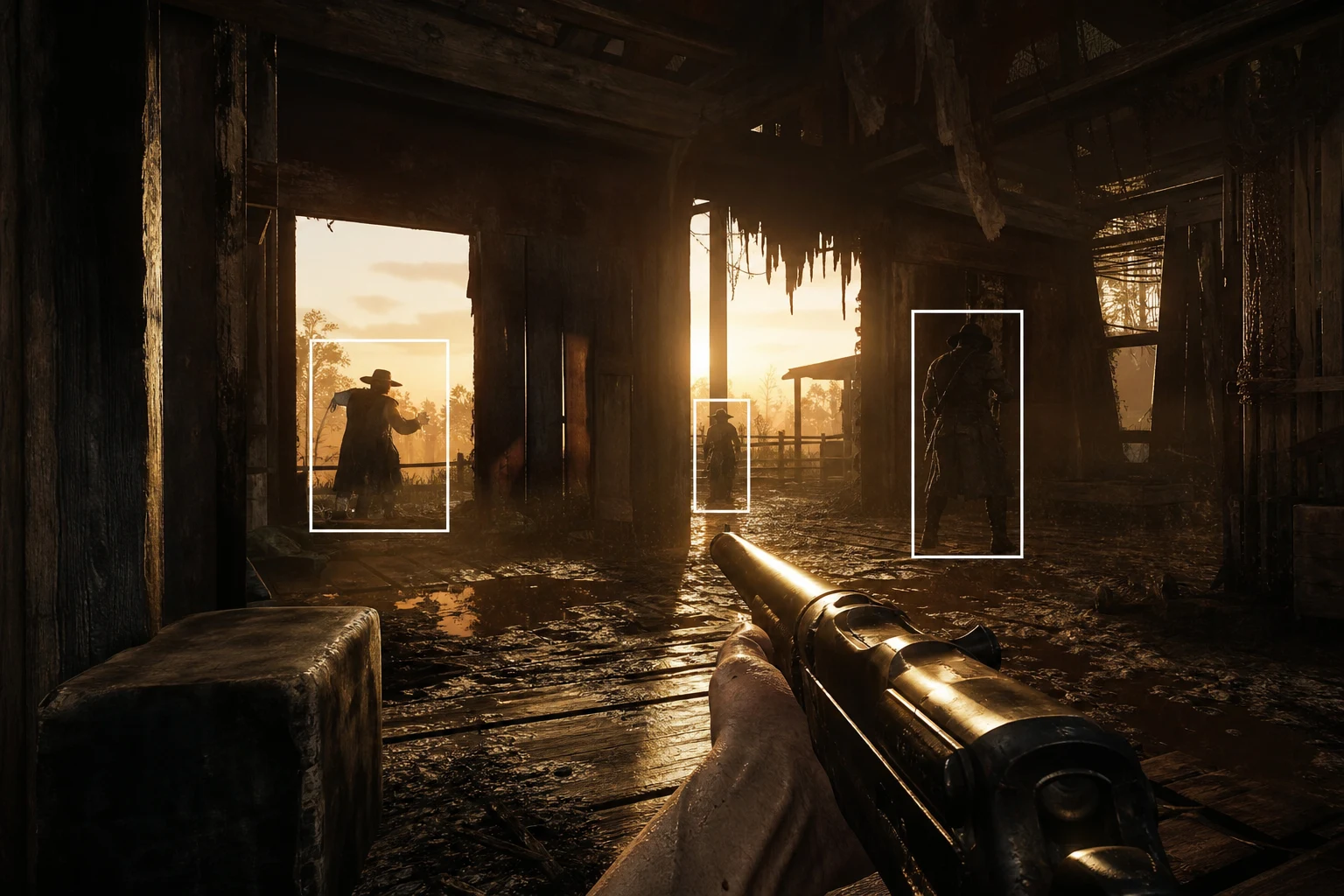
When ESP works correctly, it provides you with the following information in Hunt Showdown: the position and distance of rival players behind walls, the positions of NPC monsters (Grunt, Hive, Armored, etc.), the region and approximate location of the reward target (Boss), and the proximity of other teams to extraction points. This information allows you to set up ambushes knowing exactly where rival teams are positioned in the final circle, or to safely extract the bounty while avoiding combat.
Optimize Your ESP Settings
The loader's ESP menu typically contains these settings: Max Distance (viewing distance, optimal 150–300 meters), Box Type (2D box or skeleton mode), Color Coding (teammate green, enemy red), Health Bar (enemy health bar display), and Snap Lines (line from screen bottom to enemy). Since Hunt Showdown's maps are large, keeping your max distance value above 200 meters gives you a significant advantage in long-range combat.
Conclusion
Hunt Showdown is a game where information superiority is worth everything. Knowing exactly where your rival is — inside that barn, on the roof, or behind that cluster of trees — lets you make the split-second decisions that turn death into life. ESP does exactly that, transforming you into the most informed hunter in the bayou.
Most ESP issues are solved by basic steps like running the loader as administrator, disabling your antivirus, and switching DirectX mode to DX11. Keeping your loader version updated after game patches is the key to a trouble-free experience in the long run. Our Arcane 1896 and Hunt Showdown products are supported by active development processes that quickly adapt to such updates.
If you encounter an issue you haven't seen before, or if you're thinking about using aimbot or triggerbot features alongside ESP, you can explore our Hunt Showdown cheats category to access all available product options. If you're looking for solutions for other games, check out our Valorant cheats category or our PUBG Mobile Gameloop category.
Remember: correct setup, correct settings, and an updated loader — when these three work together, your Hunt Showdown ESP runs at full capacity and you enter every match one step ahead of your competitors.
Frequently Asked Questions (FAQ)
What information does Hunt Showdown ESP display?
ForceCheat's Hunt Showdown ESP module displays rival players' positions behind walls, their distances, NPC monster positions, and the reward target's region in real time on your screen. When skeleton mode is active, you can also see the enemy's body posture.
Why did ESP stop working after a game update?
When Hunt Showdown receives a major patch, the game's memory structure changes and the old loader version can't read the new structure. In this case, simply download the latest loader version from your ForceCheat customer panel. Updates are typically released within 12–48 hours.
What's the difference between Arcane 1896 and the Hunt Showdown product?
Both products offer ESP and additional features for Hunt Showdown. You can compare product details on the product pages in our Hunt Showdown category to decide which package best suits your needs.
The ESP overlay opens on the wrong monitor, how do I fix it?
In the loader settings, set the "Target Display" or "Monitor Index" value to the number corresponding to your primary monitor (usually 0 or 1). Also make sure Hunt Showdown is running in Fullscreen mode; overlay binding issues occur more frequently in Windowed mode.
Can I use triggerbot and ESP at the same time?
Yes, ForceCheat products are designed to run ESP and triggerbot modules simultaneously. For detailed information about triggerbot setup, check our Hunt Showdown Triggerbot setup guide.
Which DirectX mode is recommended when using ESP?
DirectX 11 mode is recommended. By adding -dx11 to your Steam launch options and selecting DX11/Overlay mode in the loader, you'll get the most stable overlay experience. In DX12 mode, the render pipeline works differently, so overlay incompatibilities occur more frequently.
Share this post
Related Posts
Will to Live Cheats: 5 Ways to Master Survival
Master Will to Live with aimbot and ESP cheats! Discover 5 proven survival strategies to dominate PvP, optimize farming, and stay ahead of rivals with advanced cheat tools.
Hunt Showdown Triggerbot Setup: Automatic Fire Guide in 5 Steps
Having trouble setting up triggerbot in Hunt Showdown? Automatic fire not working or experiencing lag? This guide solves every issue in 6 steps with proven solutions.
5 Ways to Beat Your Opponents in CS2 with Cheats
Want an unfair advantage in CS2? Learn how to dominate your rivals with aimbot, wallhack and more. Experience the difference with ForceCheat's Arcane product.