
Hunt Showdown Triggerbot Setup: Automatic Fire Guide in 5 Steps
Having trouble setting up triggerbot in Hunt Showdown? Automatic fire not working or experiencing lag? This guide solves every issue in 6 steps with proven solutions.
Introduction: Why Isn't Hunt Showdown Triggerbot Working?
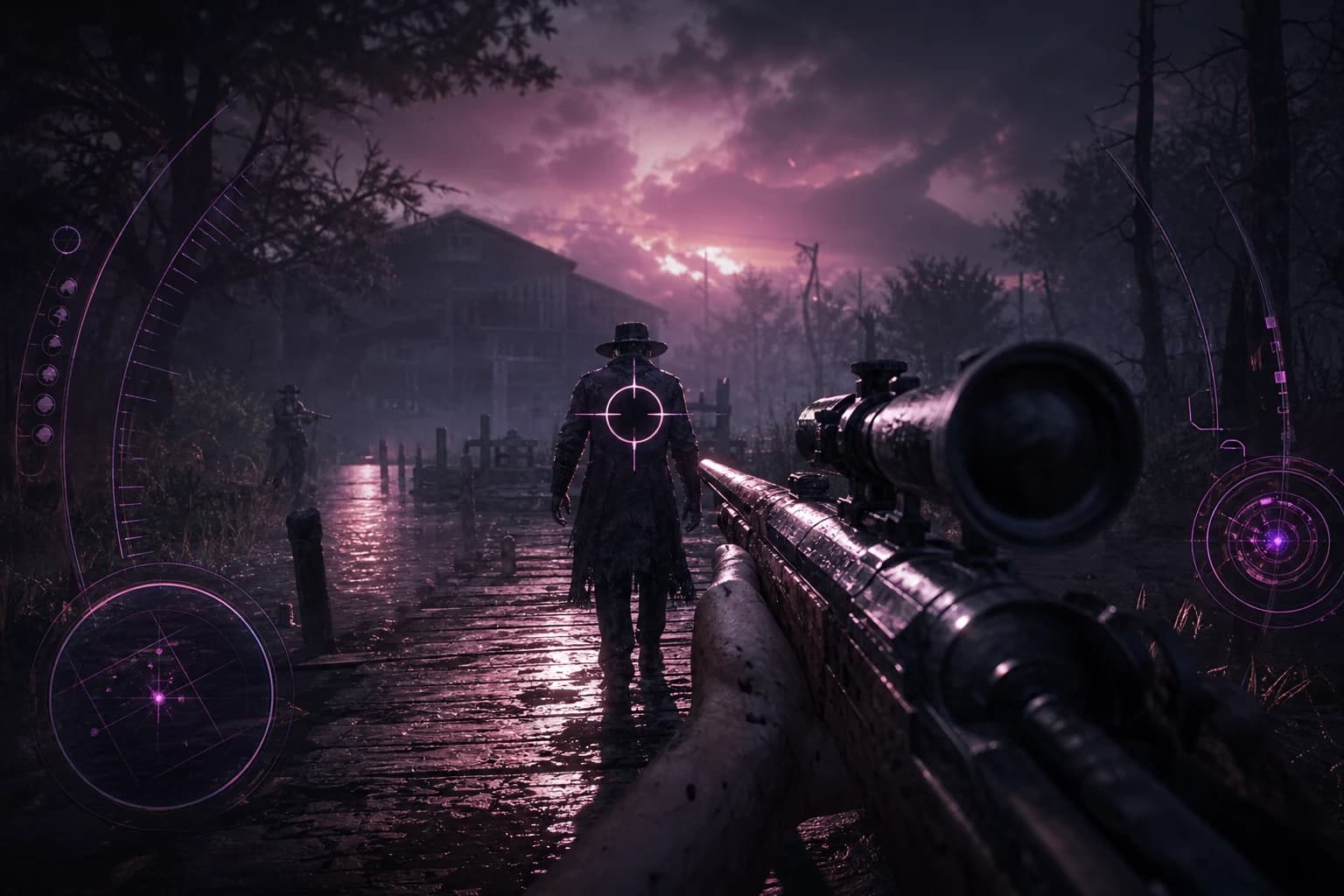
Hunt Showdown delivers a high-tension, intensely competitive FPS experience combining PvP and PvE elements simultaneously. While hunting across swamp maps, a rival suddenly emerging from a corner can eliminate you with superior reflexes. This is where triggerbot comes in: it fires automatically the millisecond your target enters the weapon's crosshair, eliminating the limits of human reflexes. A properly configured triggerbot keeps you one step ahead of your rivals in Hunt Showdown's fast-paced firefights.
However, triggerbot setup—especially if you're configuring it for the first time—can produce unexpected issues. The most common complaints are: triggerbot never fires, fires at the wrong target, causes severe FPS drops in-game, software crashes on startup, or key bindings don't respond in-game. Each of these problems actually stems from a specific configuration error, and each has a clear solution.
This guide is designed to provide Hunt Showdown players wanting to use triggerbot with step-by-step setup and troubleshooting procedures. It's based on the Arcane 1896 and Hunt Showdown products offered in our Hunt Showdown cheats category; therefore, these steps are directly compatible with these software packages.
To find the source of the problem, first ask yourself: Did triggerbot never work, or did it work for a while then stop? In the first scenario, it's usually a setup order or missing administrator permissions issue. In the second scenario, a game update or background process conflict is more likely. We've arranged the solutions below starting with the most probable cause; your issue will likely be resolved in the first two steps.
It's also worth noting that Hunt Showdown is a game Crytek actively develops, and game updates occasionally affect how cheat software functions. ForceCheat products are regularly updated against these changes; therefore, ensuring your version is current should be your first troubleshooting step.
Summary: If Hunt Showdown triggerbot isn't working, try in order: upgrade software to current version, run as administrator, disable antivirus, restart the game, reset key bindings, and adjust FOV/color filter values. If the problem persists, contact ForceCheat support.
Solution 1: Update Software Version
Symptom: Triggerbot Never Fires or Loader Won't Open
If triggerbot completely stops responding after a Hunt Showdown update, there's likely an incompatibility between the game's new structure and your old software version. This is the most common and easiest-to-solve problem.
- Log into your ForceCheat account and navigate to the download page for your purchased product (Arcane 1896 or Hunt Showdown).
- Note the current version number; compare it with the version installed on your computer.
- Completely uninstall the old version: delete the installation folder, then clean up remaining files in %AppData% and %Temp% directories.
- Download and install the current version.
- After installation completes, restart your computer; then open the loader first, followed by the game.
Expected result: After installing the current version, triggerbot performs target detection correctly and fire delay normalizes. Most users resolve the issue completely after this step.
Solution 2: Run Loader as Administrator
Symptom: Loader Opens But Can't Inject Into Game
Windows requires administrator permissions for software that interferes with system processes. When the loader runs without administrator privileges, injection into the game process fails, and even though triggerbot appears to be working, it does nothing.
- Right-click the loader file (usually
ForceCheat_Loader.exe). - Go to "Properties" → "Compatibility" tab.
- Check the box "Run this program as an administrator" and click "Apply".
- Apply the same steps to the game's own .exe file (right-click the game in Steam library → Properties → Local Files → Browse Local Files).
- If Windows UAC (User Account Control) appears, confirm by clicking "Yes".
Expected result: The loader successfully injects into the game process. The in-game menu (usually opened with INSERT or HOME key) becomes visible and you can access triggerbot settings.
Additional Tip: Check UAC Level
If you set the notification level to "Never notify" in Control Panel → User Account Control settings, the loader will run without requesting permission each time. This saves time, especially if you don't want to repeatedly confirm permissions at each login.
Solution 3: Disable Antivirus and Windows Defender
Symptom: Loader File Quarantined or Deleted
Cheat software can be classified as a threat by antivirus programs because it interferes with system processes. This can result in the loader being deleted, quarantined, or silently blocked in the background. If the file appears to exist but isn't working, investigate this scenario.
- Open Windows Security Center → "Virus & threat protection" → "Manage settings".
- Temporarily turn off real-time protection.
- If you use third-party antivirus software (Avast, Kaspersky, Bitdefender, etc.), disable it from the system tray.
- Copy the loader file back to your downloads folder (recover from quarantine or re-download).
- Go to the "Exclusions" section in Windows Defender and add the ForceCheat installation folder to the exclusion list—this way you won't have to disable antivirus each time.
- Run the loader and start the game.
Expected result: The loader file is no longer deleted, injection completes successfully. After adding the exclusion folder, you can turn your antivirus back on; only ForceCheat files will be excluded from scanning.
Solution 4: Reconfigure Triggerbot Keybind and Fire Settings
Symptom: Triggerbot Active But Doesn't Fire When Key Pressed
The most frequently misconfigured part of triggerbot is the fire key (keybind) and delay settings. When the wrong key is assigned or delay is set too high, triggerbot appears to work but is practically useless.
- Open the in-game ForceCheat menu (default: INSERT key).
- Go to the "Triggerbot" tab and verify the "Enable" box is checked.
- Check the keybind field: for most users, the most practical options are mouse side buttons (Mouse4 or Mouse5) or CAPS LOCK. Choose an infrequently-used key to avoid conflicts with in-game keys.
- Set the delay value between 50–120 ms. 0 ms can seem too aggressive and doesn't work properly on some systems; over 200 ms causes noticeable delay.
- Select "Hold" mode according to Hunt Showdown's weapon mechanics (active while key is held)—this mode reduces the risk of accidental fire.
- Save settings and enter Training mode to test.
FOV Setting: Target Detection Sensitivity
When triggerbot's target detection field (FOV) is set too narrow, it won't fire unless the crosshair is perfectly centered. For Hunt Showdown's long-range weapons, an FOV value between 3–5 px is recommended; for short-range weapons like shotguns, 8–12 px. Gradually increase this value to find the sweet spot for your playstyle.
Solution 5: Optimize Color Filter and Game Graphics Settings
Symptom: Triggerbot Misses Some Targets, Detects Others
Pixel-based triggerbot systems detect target player models based on color differences. Hunt Showdown's dark and high-contrast visual style can cause improperly configured color filters to miss targets.
- From Hunt Showdown graphics settings, reduce shadow quality to "Medium"—very high shadow detail changes character model colors and makes detection difficult.
- Keep in-game brightness between 50–55; values too low or too high corrupt color detection.
- From the ForceCheat menu, adjust the target color range in the Color Filter section. The default red/orange range works for most maps; however, you may need to add blue-gray tones for bright map areas.
- Increase digital vibrance/saturation from your NVIDIA or AMD panel to 70–80%—this makes character models more distinct from the background and increases triggerbot detection rate.
- After changes, test on 10–15 targets in Training mode and observe miss rate.
Expected result: When the color filter is properly configured, triggerbot consistently detects targets in Hunt Showdown's various lighting conditions (night maps, fog effects, indoor darkness).
Solution 6: Close Conflicting Background Processes
Symptom: Triggerbot Randomly Stops or FPS Drops
Certain system processes cause resource or memory conflicts with cheat software, resulting in inconsistent triggerbot operation. Discord overlay, GeForce Experience overlay, and Xbox Game Bar are the most common culprits.
- Disable Xbox Game Bar: Settings → Gaming → Xbox Game Bar → Off.
- Open GeForce Experience → Settings → General → disable "In-Game Overlay".
- In Discord, go to Settings → Activity Status → turn off "Enable Activity Status".
- Open Task Manager (Ctrl+Shift+Esc) and terminate unnecessary background processes (browsers, cloud sync applications).
- Set Hunt Showdown to "High" priority from Task Manager: Details tab, right-click
HuntGame.exe→ Set Priority → High.
RAM and Page File Optimization
If your system has 16 GB or less RAM, manually increasing page file (virtual memory) size can improve triggerbot stability. From System Properties → Advanced → Performance → Settings → Advanced → Virtual Memory, set both minimum and maximum values to 8192 MB.
Solution 7: Clean Installation from Scratch
Symptom: None of the Above Steps Work
Sometimes a corrupted installation file or incomplete previous installation is the source. In this case, a clean installation is the most reliable solution.
- Uninstall ForceCheat software from Control Panel → Programs → Programs and Features.
- Manually delete these directories:
C:\Users\[YourUsername]\AppData\Roaming\ForceCheatandC:\Users\[YourUsername]\AppData\Local\ForceCheat. - Restart your computer.
- Temporarily disable antivirus and Windows Defender.
- Download the current loader from your ForceCheat account and choose a short, space-free installation path like C:\ForceCheat.
- Run as administrator, open the game, and reconfigure triggerbot settings from scratch.
Expected result: A clean installation resets all issues stemming from corrupted configuration files. After this step, triggerbot will likely work flawlessly.
If you want to check out our current Hunt Showdown products, visit our Hunt Showdown cheats page to review the current features of the Arcane 1896 and Hunt Showdown packages. If you're looking for similar solutions for other FPS games, check out our Valorant cheats category.
Still Not Resolved? Contact ForceCheat Support
You've applied all seven solutions above and triggerbot still isn't working as desired—your issue may stem from a configuration conflict specific to your system. This is where ForceCheat support comes in.
When creating a support ticket, have this information ready: operating system version (Windows 10/11, build number), GPU model and driver version, Hunt Showdown game version, ForceCheat product used (Arcane 1896 or Hunt Showdown) and version number, and a screenshot if there's an error message. With this information, support can diagnose your issue much faster.
You can also join the ForceCheat Discord server to review solutions other users have found for similar issues. Hunt Showdown-specific tips and current configuration recommendations are regularly shared in community channels.
Additionally, check out our Hunt Showdown Aimbot Precision Guide to optimize aimbot settings alongside triggerbot—using both together multiplies your Hunt Showdown performance.
Conclusion
Hunt Showdown is a challenging FPS experience that tests both reflexes and game knowledge simultaneously. Triggerbot adds automatic fire precision to this equation, pushing you beyond your rivals' reflex limits. However, to fully benefit from this advantage, the software must be properly installed and configured.
The seven solutions covered in this guide address the vast majority of triggerbot issues. From version updates to administrator permissions, antivirus exclusions to color filter optimization, each step is based on real user scenarios. In most cases, the first two steps—upgrading to the current version and running as administrator—completely resolve the problem.
Once you've properly configured triggerbot, you'll notice a marked difference in your Hunt Showdown firefight outcomes. Especially in narrow corridors and corner passages, automatic fire the moment your rival appears on screen significantly increases your survival rate. With long-range weapons, keeping delay between 80–100 ms achieves both a natural-looking and effective fire rhythm.
If you're looking for cheat tools beyond triggerbot, find all our products equipped with ESP, aimbot, and other features in our Hunt Showdown cheats category. If you play PUBG Mobile, we recommend checking out our PUBG Mobile Gameloop category. For advantageous gameplay experiences in other FPS games, our CS2 Cheats Guide is an excellent starting point.
At ForceCheat, our goal is to help you use tools that elevate your gaming experience seamlessly. If you get stuck at any step, our support team and community channels are always ready. Happy gaming!
Frequently Asked Questions (FAQ)
What's the difference between Hunt Showdown triggerbot and aimbot?
Aimbot automatically moves your crosshair onto the target. Triggerbot lets you aim; it only fires automatically when the target enters your crosshair. Using both together provides maximum effect; however, triggerbot alone offers more natural-looking gameplay.
Which Hunt Showdown products does ForceCheat offer?
ForceCheat offers two products for Hunt Showdown: Arcane 1896 and Hunt Showdown. Both include triggerbot, ESP, and aimbot features. For current feature lists and pricing, visit our Hunt Showdown cheats page.
What's the best delay value for triggerbot?
In Hunt Showdown, it varies by weapon type: 40–70 ms for shotguns and pistols, 80–120 ms for rifles and carbines. Very low values (0–20 ms) can cause instability on some systems; very high values (200 ms+) eliminate the advantage.
Why does triggerbot stop working after a game update?
Game updates can change the game's memory structure and process architecture. This causes older software versions to become incompatible with the new structure. The solution is always the same: download and reinstall the current version from your ForceCheat account.
I'm experiencing FPS drops while using triggerbot, what should I do?
FPS drops usually result from background processes consuming resources. Disable Discord overlay, GeForce Experience overlay, and Xbox Game Bar. Also set Hunt Showdown to "High" priority from Task Manager. Reducing shadow quality to "Medium" in graphics settings also helps.
Which weapons work best with triggerbot?
In Hunt Showdown, triggerbot delivers the best results with mid-to-short range weapons (Winfield, Romero, Caldwell Conversion). With long-range rifles (Mosin, Springfield), combining with aimbot is recommended; these weapons require longer aiming time and triggerbot alone may not be sufficient.
Share this post
Related Posts
Hunt Showdown ESP Not Working? 7-Step Enemy Location Fix
Hunt Showdown ESP not showing enemy locations? Overlay won't open, wallhack not working? We solve the 7 most common issues step by step.
Will to Live Cheats: 5 Ways to Master Survival
Master Will to Live with aimbot and ESP cheats! Discover 5 proven survival strategies to dominate PvP, optimize farming, and stay ahead of rivals with advanced cheat tools.
5 Ways to Beat Your Opponents in CS2 with Cheats
Want an unfair advantage in CS2? Learn how to dominate your rivals with aimbot, wallhack and more. Experience the difference with ForceCheat's Arcane product.