
Rust Radar Map Control: Real-Time Player Tracking Guide
Master Rust map control with radar systems for real-time opponent tracking. Learn optimal settings, game-specific profiles, and common setup mistakes in this complete guide.
Introduction: Why Map Knowledge Comes First in Rust?
Rust stands out among survival games for its harsh competitive structure. From the moment you connect to a server, every corner holds potential threats: a player gathering resources, a group expanding their base, or a solo player waiting in ambush on your exact route. In standard gameplay, it's impossible to see these threats in advance; however, map knowledge creates the most critical difference between survival and dominance in Rust.
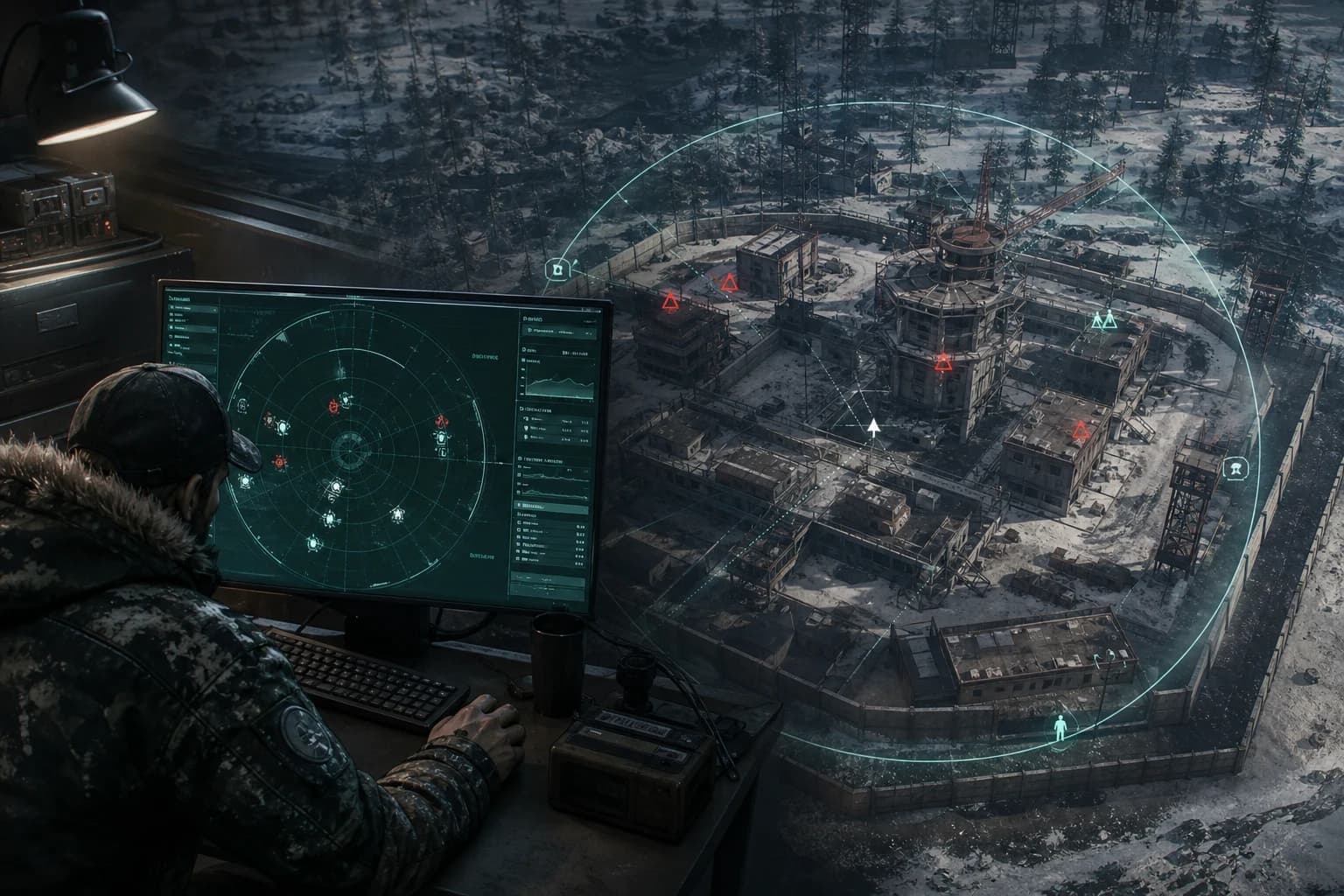
This is where the radar system comes in. Radar allows you to view player positions, animal movements, and specific structures in real-time on a separate mini-map. Instantly noticing that your rival is advancing 200 meters north, a group is gathering east of your base, or a player is waiting right ahead of you fundamentally changes your resource gathering route, raid timing, and defensive positioning.
Among Rust cheat strategies, radar offers the least aggressive but highest tactical value. Rather than directly boosting combat performance like aimbot, radar equips you with information superiority. In an asymmetric game like Rust, information superiority is often more valuable than firepower. When you spot a group, you can flee from them, set up an ambush, or raid their base—all decisions made before your rivals even know you're there.
But is setting up and configuring a radar system really that simple? No. A misconfigured radar clutters your screen with unnecessary information, reduces performance, and distracts you at critical moments. A properly configured radar works like an invisible assistant: it presents only the information you need, exactly when you need it. In this guide, we'll cover optimal radar system configuration for Rust, game-style-specific profiles, and the most common setup mistakes.
ForceCheat's Morphine product offers a comprehensive radar and ESP solution developed for Rust. While the following setting recommendations are prepared through this platform, they also apply to any Rust player wanting to understand general radar logic.
Summary: Rust's radar system provides tactical superiority by showing rival positions on a real-time mini-map. Update speed, filter settings, and map scale are critical parameters for proper configuration. You can easily activate this system with Morphine.
Radar System's Basic Components and Operating Logic
Mini-Map and Overlay Structure
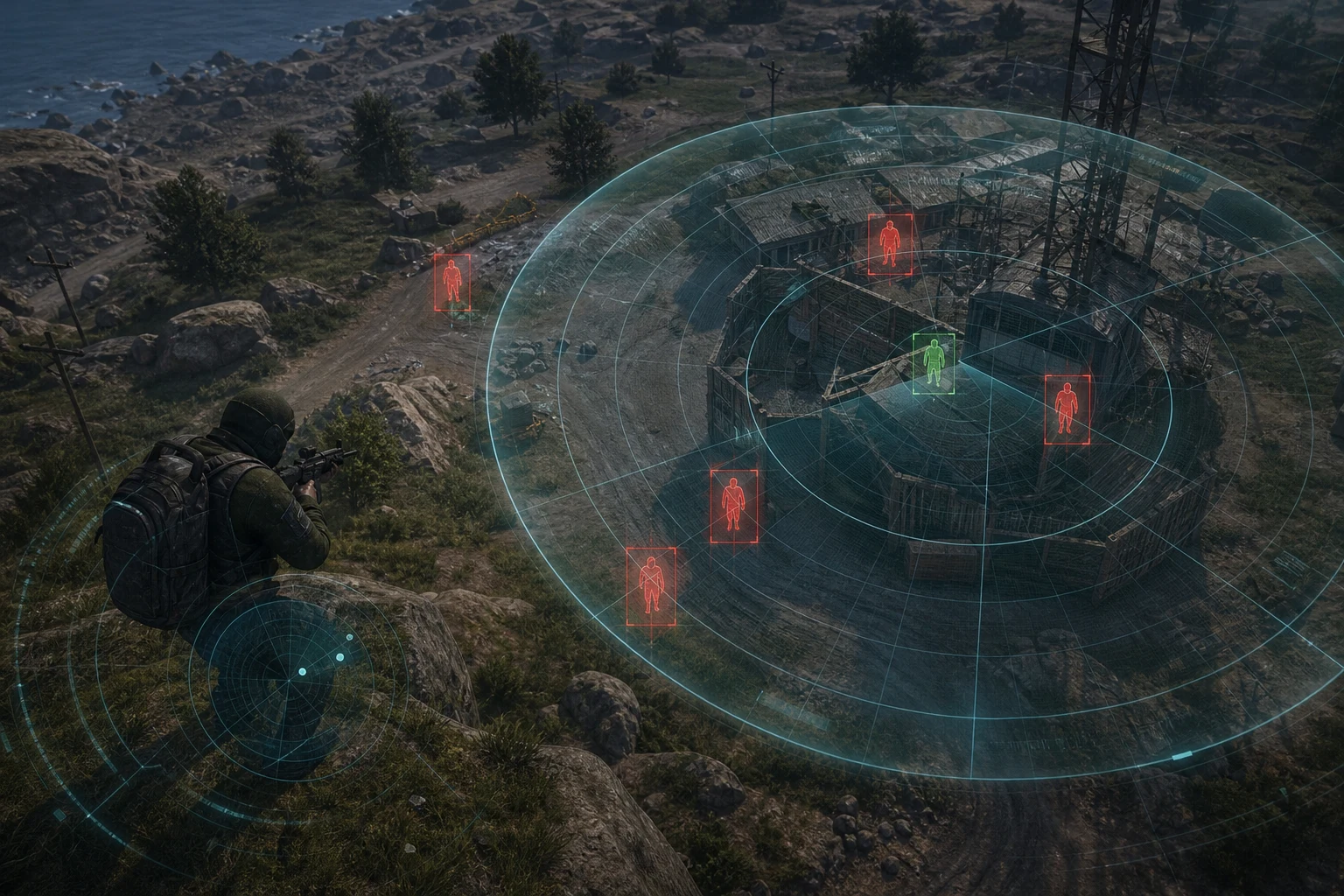
The radar system fundamentally consists of two layers: a background engine processing game data and an overlay interface reflecting this data to your screen. The overlay is placed as a transparent layer on top of the game's own interface. On this layer, players, animals, NPCs, and structures are marked with different color codes.
The position and size of the mini-map are critical for both visibility and attention management. A small radar placed in the upper left corner of the screen allows you to continuously monitor it using your peripheral vision. The lower right corner can cause overlap issues when inventory is open; therefore, it's not recommended.
Data Update Speed and Latency
How frequently radar data is refreshed directly affects how useful the system is. When update speed is set too low (for example, 500ms+), the position of fast-moving players can deviate significantly from their actual position on the map. When update speed is set too high, the system unnecessarily consumes resources and causes FPS drops.
The optimal update interval has been determined as 100-150ms for most systems. This value provides a refresh at 6-10 frame intervals and represents a balanced point for both accuracy and performance.
Radar Settings: Recommended Values and Explanations
Basic Display Settings
The following table contains the radar system's basic display parameters and recommended values. These values are optimized for 1080p resolution and medium-to-high density servers (200-400 players).
| Setting | Recommended | Why |
|---|---|---|
| Radar Size | 220x220 px | Covers 10-12% of screen; readable without distraction |
| Map Scale (Zoom) | 150m radius | Covers immediate threats, filters noise |
| Overlay Transparency | 75% opaque | You read the radar clearly without seeing the background |
| Player Dot Size | 4px | Distinguishable on small map without overlap |
| Radar Position | Upper left, 10px margin | In peripheral vision field, doesn't overlap with HUD |
| North Lock | On | Fixed direction reference, simplifies navigation |
| Character Center | On | You always see your position at the map center |
Color Coding and Filter Settings
Color coding of elements displayed on the radar is fundamental to fast information processing. Using different colors for different threat levels minimizes your viewing time.
| Setting | Recommended | Why |
|---|---|---|
| Enemy Player Color | Red (#FF3333) | Highest contrast, immediately draws attention |
| Teammate Color | Green (#33FF66) | Clear distinction from enemies, position coordination |
| NPC/Scientist Color | Yellow (#FFDD00) | Threat but not priority, medium warning |
| Animal Filter | Off (dense server) | Reduces noise on high-population servers |
| Dead Player Marker | Gray, visible 3 seconds | Provides location info for loot opportunities |
| Helicopter/Bradley | Orange, large icon | High-value event, shouldn't be missed |
Radar Synergy Settings with ESP Integration
Wallhack and Radar Coordination
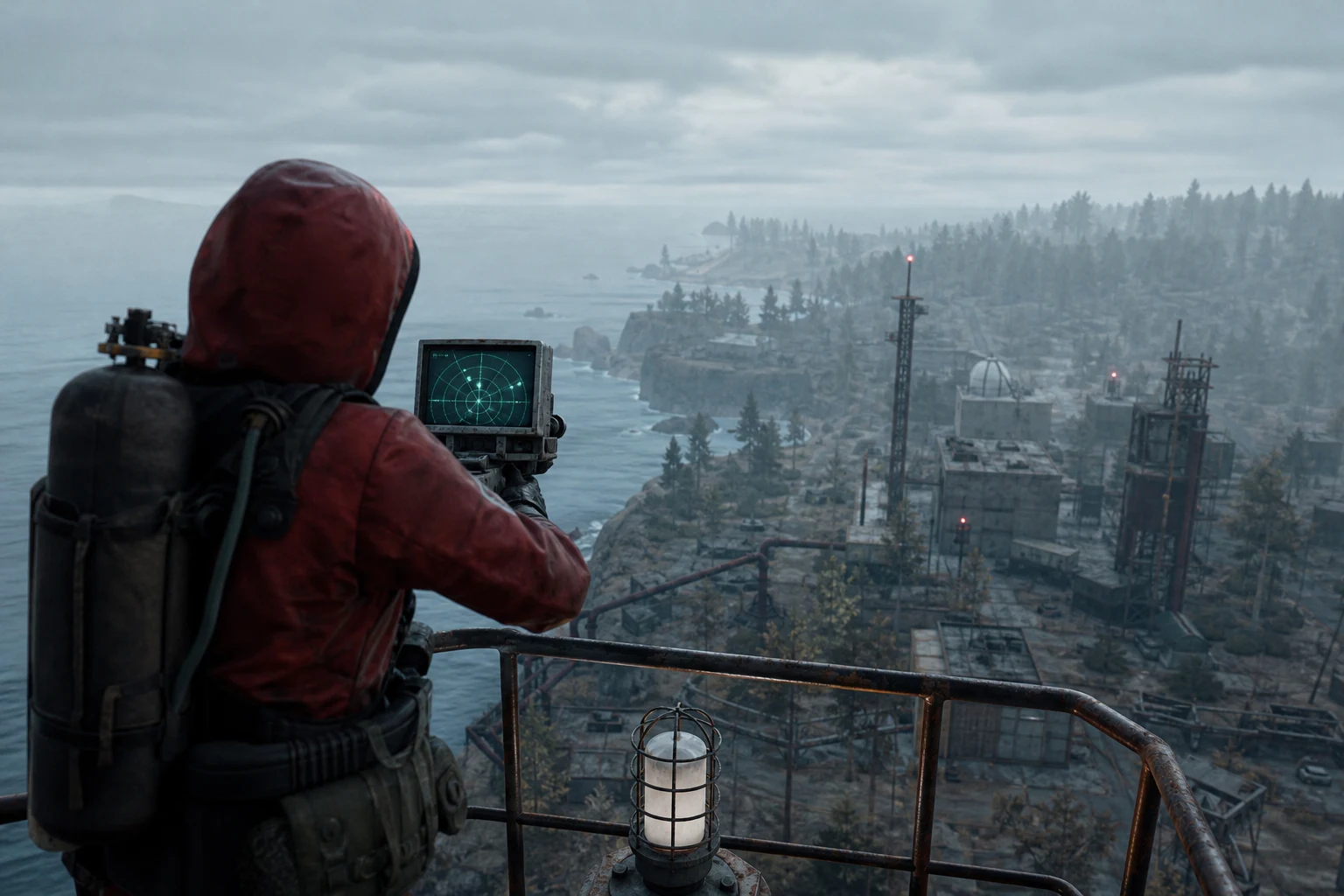
When radar and ESP are used together, each complements the other's shortcomings. While radar shows you distant threats, ESP provides details of players behind walls at close range. Synchronization between these two systems is critical: when you see a player 80 meters away on the radar, ESP activates to show that player's exact position, health status, and weapon.
Morphine's Rust module manages this integration automatically. However, in manual configuration, the important point is to match the ESP drawing distance with the radar viewing radius. If radar shows a 150m radius, setting ESP drawing distance to 150-180m prevents unnecessary processing load.
Distance Labels and Priority Ranking
Seeing dozens of dots on the radar in a crowded server can be worse than seeing nothing. A distance-based priority system solves this problem:
For players 0-50 meters away, show large, bright dots and distance labels. This is the immediate threat zone. For 50-100 meters, show medium size, labels optional. For 100-150 meters, show small dots, labels off. This layered system directs your attention to truly important threats.
Performance Optimization: Running Radar Without FPS Loss
| Setting | Recommended | Why |
|---|---|---|
| Update Interval | 120ms | Smooth tracking, balanced CPU load |
| Maximum Tracked Players | 64 | Processing limit on high-population servers |
| Render Mode | Hardware accelerated | GPU overlay, reduces CPU load |
| Anti-Aliasing (Radar) | Off | Unnecessary for mini-map, consumes resources |
| Background Map | Low resolution | High-resolution map consumes significant VRAM |
| Night Mode Filter | On (night hours) | Reduces eye strain in dark environments |
On low-to-mid range systems (GTX 1060 / RX 580 equivalents), running the radar overlay on the same core as the game process can cause FPS loss. On these systems, assigning overlay processing to a separate CPU core preserves game performance. On high-end systems (RTX 3070+ / RX 6700 XT+), this optimization is usually unnecessary.
Radar Profiles by Game Style
Profile 1: Aggressive Raid Player
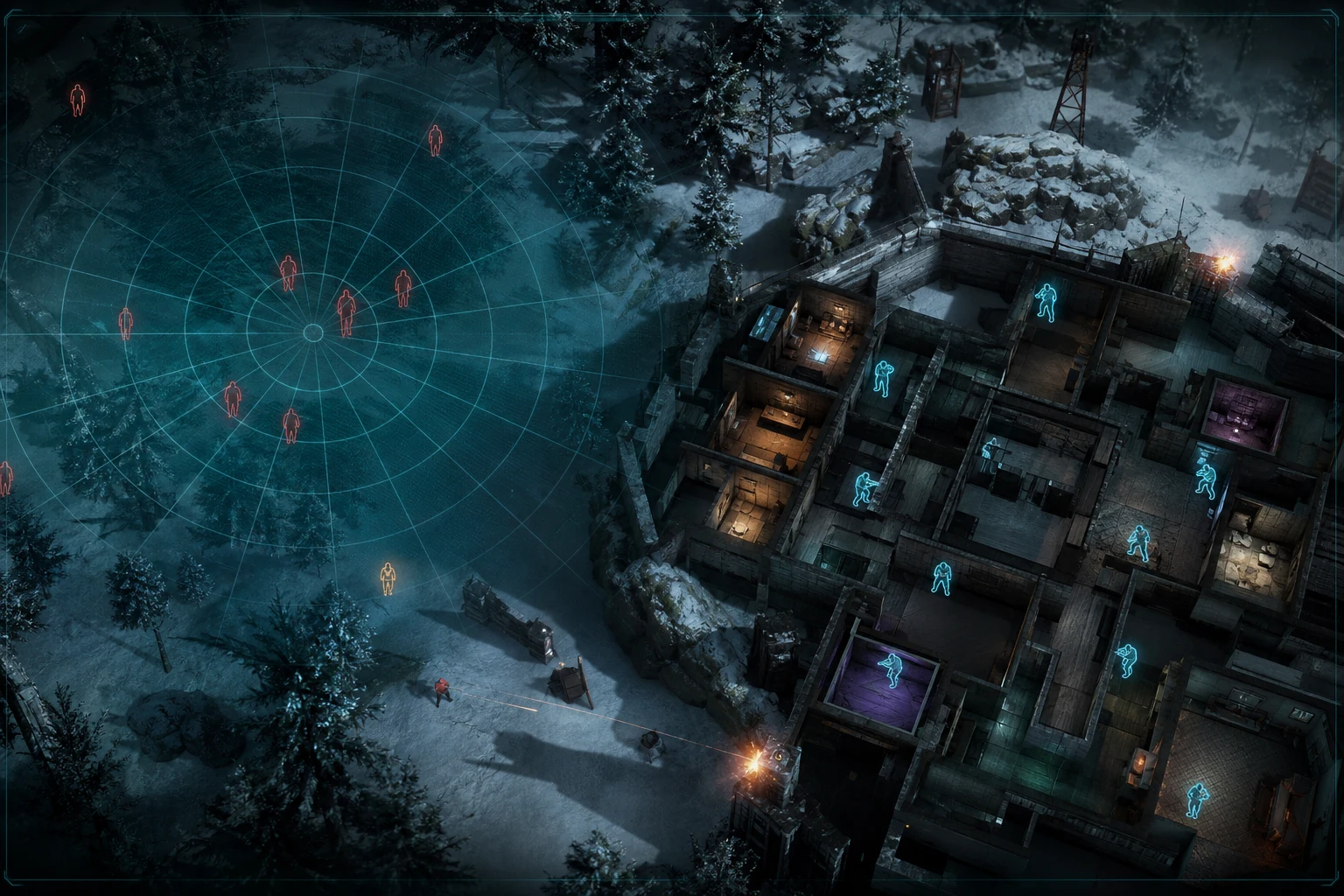
Designed for players who move constantly, focus on raids and PvP. This profile gives maximum priority to instant threat detection on radar.
Basic parameters: Radar radius 100m (narrower, clearer), update interval 80ms (faster, more precise), animal filter completely off, only player and NPC display active. Dot size 5px (large for quick reading), overlay transparency 85% (clear image). Distance labels active only for 0-40m range. This profile keeps you one step ahead of rivals; when turning a corner or entering a building, you instantly know if someone's inside.
Profile 2: Balanced Survival
Optimized for players doing both resource gathering and PvP, in the base development phase. This profile provides broad awareness while preserving performance.
Basic parameters: Radar radius 150m (standard), update interval 120ms, animal filter on (for food and resources), all element types active. Dot size 4px, overlay transparency 75%. Distance labels active for 0-80m range. Helicopter and Bradley notifications on. This profile lets you continuously monitor your surroundings when leaving your base to gather resources.
Profile 3: Cautious Solo Player
Designed for solo players avoiding group raids, prioritizing survival, and avoiding risk. This profile focuses on early warning systems.
Basic parameters: Radar radius 200m (maximum awareness), update interval 150ms, all element types active, special alert for group detection (multiple players at close range). Dot size 3px (less distracting), overlay transparency 65%. Directional alert system active: if multiple players approach from a specific direction, audio alert triggers. With this profile, you create a 200-meter safety buffer; you can detect a group far in advance and change your route.
Common Radar Configuration Mistakes
Mistake 1: Keeping Radius Too Wide
Many users set radar radius to maximum (300-400m). This fills the map with dozens of dots and causes you to lose real threats in the noise. A radius above 150-200m only makes sense for those doing long-range sniper gameplay in open terrain. For standard gameplay, 100-150m is ideal.
Mistake 2: Setting Update Speed Too High
An update interval of 50ms or less can cause 10-15% FPS loss on mid-range systems. Such high speed is already limited by Rust's server-side position update frequency (usually 66ms); therefore, values below 80ms make no practical difference, only create system load.
Mistake 3: Leaving All Filters On
Showing animals, NPCs, loot boxes, helicopters, and players all at once makes the radar unreadable. Turn off unnecessary layers based on your playstyle. Turning off the animal filter during a PvP session significantly cleans up your radar.
Mistake 4: Choosing Wrong Radar Position
Radar placed at screen center or lower right corner either blocks your direct vision or overlaps when inventory/map is open. Upper left or upper right corners are the safest positions for most game UIs.
Mistake 5: Color-Blind Unfriendly Color Selection
Red-green color combinations cause issues for approximately 8% of color-blind users. Using orange instead of red for enemies and blue instead of green for teammates provides both color-blind friendly and higher contrast experience.
Safe Operating Principles in Rust Radar Usage
Technical Foundations of Staying Undetected
ForceCheat's Rust solutions are designed to operate in a process architecture independent of detection systems. Morphine uses external reading methods rather than directly interfering with the game's memory space; this makes it difficult for standard anti-cheat scanning routines to associate the radar process with the game.
Beyond technical protection, usage habits also matter. Using radar data too obviously—for example, walking directly to a player's exact location or noticing someone behind a wall too early—can raise suspicion from other players. Using information strategically provides both a more natural gameplay experience and long-term account security.
Considerations During Update Periods
Rust receives regular patches from Facepunch Studios. It's important to check radar system compatibility after each major update. The ForceCheat team aims to release Morphine updates in sync with game patches; however, checking forums and announcement channels 24-48 hours after an update before using the system is good practice.
Conclusion
Map mastery in Rust goes far beyond reflexes and marksmanship. The best players are those who access information before their rivals, detect threats in advance, and position accordingly. The radar system is one of the most powerful tools for providing this information superiority systematically and reliably.
The setting values we covered in this guide—150m radius, 120ms update interval, layered color coding, and distance-based prioritization—are parameters tested and optimized over years. However, every player's hardware, playstyle, and server preference differs. Take these values as a starting point and fine-tune them over a few sessions based on your own experience.
While the aggressive raid profile gives you instant threat detection in constant PvP action, the cautious solo profile creates a 200-meter safety buffer that dramatically increases your survival rate. The balanced profile offers the best of both worlds: you maintain maximum awareness both while gathering resources and during combat.
Avoiding common mistakes—excessively wide radius, unnecessary filters, wrong radar position—will significantly improve both your system's performance and usability. Synchronizing ESP integration with radar fully unlocks the synergy of these two systems.
To stay one step ahead in Rust, you can explore all our Rust cheat products and choose the solution that best fits your needs. If you're looking for similar tactical advantages in other games, check out our Valorant category or PUBG Mobile category. Additionally, our articles on 5 ways to leave PUBG Mobile rivals behind and Rust triggerbot troubleshooting guide will help expand your tactical library.
Frequently Asked Questions
What exactly does the Rust radar system show?
The Rust radar system displays other players' positions, NPCs (scientists, etc.), animals, and optionally special events like helicopters and Bradley on a real-time mini-map. Advanced solutions like Morphine also provide additional data such as player health and weapon information integrated with ESP.
What's the difference between radar and ESP?
Radar shows players as dots on a bird's-eye view mini-map and is ideal for tracking distant threats. ESP (Extra Sensory Perception) draws information boxes, names, health bars, and distance labels directly on players in the game world. Using both systems together maximizes both distant and close-range awareness.
How much should I set my radar radius to?
For standard PvP and survival gameplay, a 100-150 meter radius is recommended. This range is wide enough to cover immediate threats while narrow enough to filter noise. If you're doing open terrain sniper gameplay, you can increase to 200m; however, values above 200m make the radar unreadable in most scenarios.
How much does radar usage affect my FPS?
A properly configured radar system causes no FPS loss on modern mid-to-high range systems. On GTX 1060 / RX 580 level systems, increasing update interval to 120ms and above, enabling hardware-accelerated render mode, and limiting maximum tracked players to 64 minimizes FPS loss.
Does the radar system continue working after Rust updates?
The radar system may need updating after major game updates. ForceCheat releases Morphine patches in parallel with game updates. We recommend checking ForceCheat's official announcement channels before using the system after an update; this ensures you're always using the most current and compatible version.
How much benefit does radar provide when playing solo?
For solo players, radar is one of the most effective defensive tools against group raids. With the cautious solo profile (200m radius, directional group alert), you can detect a group's approach far in advance, change your route, set up an ambush, or retreat to safety. Information superiority greatly compensates for solo players' numerical disadvantage.
Can I use Morphine with other Rust cheat tools?
Morphine includes radar and ESP features plus additional modules like aimbot and recoil control. All these modules are managed through a single interface and designed to work compatibly with each other. For detailed feature list and current version information, visit the Morphine product page.
Share this post
Related Posts
Hunt Showdown ESP Not Working? 7-Step Enemy Location Fix
Hunt Showdown ESP not showing enemy locations? Overlay won't open, wallhack not working? We solve the 7 most common issues step by step.
Will to Live Cheats: 5 Ways to Master Survival
Master Will to Live with aimbot and ESP cheats! Discover 5 proven survival strategies to dominate PvP, optimize farming, and stay ahead of rivals with advanced cheat tools.
Hunt Showdown Triggerbot Setup: Automatic Fire Guide in 5 Steps
Having trouble setting up triggerbot in Hunt Showdown? Automatic fire not working or experiencing lag? This guide solves every issue in 6 steps with proven solutions.