
Rainbow Six Siege ESP Settings: Guide to Seeing Enemy Positions
- Introduction: Information Superiority is Everything in Rainbow Six Siege
- What is ESP and How Does It Work in Siege?
- Basic ESP Components
- ESP Advantages Specific to Siege
- Basic ESP Settings and Recommended Values
- Visual Quality and Performance Balance
- Additional Information Layers
- ESP Profiles by Playstyle
- Profile 1: Aggressive Entry Fragger
- Profile 2: Balanced Roamer/Flank
- Profile 3: Cautious Support / Anchor
- Common Configuration Mistakes
- Mistake 1: Setting Maximum Distance Too High
- Mistake 2: Drawing Both Skeleton and Box with Thick Lines
- Mistake 3: Opening All Information Layers at Once
- Mistake 4: Color Choice Clashing with Map
- Mistake 5: Leaving Render Frequency Low
- Staying Undetected: Safe Usage Configuration
- Correct Settings Against Anti-Cheat System
- Behavioral Security Tips
- ESP Configuration by Map
- Closed Area Maps: Clubhouse, Bank, Chalet
- Open Area Segmented Maps: Coastline, Villa, Skyscraper
- Multi-Story Maps: Tower, Kafe Dostoyevski
- Conclusion
- Frequently Asked Questions
- Can bounding box and skeleton be used together with Rainbow Six Siege ESP?
- I'm experiencing FPS drops while using ESP, what should I do?
- When will Rainbow Six Siege become free?
- Are ESP and wallhack the same thing?
- Is ForceCheat's R6 ESP undetected against BattlEye?
- Which ESP color shows better on which map?
- Do I need to restart the game to change ESP settings?
Introduction: Information Superiority is Everything in Rainbow Six Siege
Rainbow Six Siege stands out as one of the most competitive examples of the tactical shooter genre. Unlike other FPS games, reflexes alone won't take you to the top here; knowing every corner of the map, the exact position of your enemy, and their movements beforehand completely changes the course of the match. Is there a Jäger setting up an ambush behind a wall? An Ash sneaking past cameras? In standard gameplay, you can only access this information through voice warnings from teammates or careful map reading. But there's a much more reliable way to close this information gap: the ESP (Extra Sensory Perception) feature.
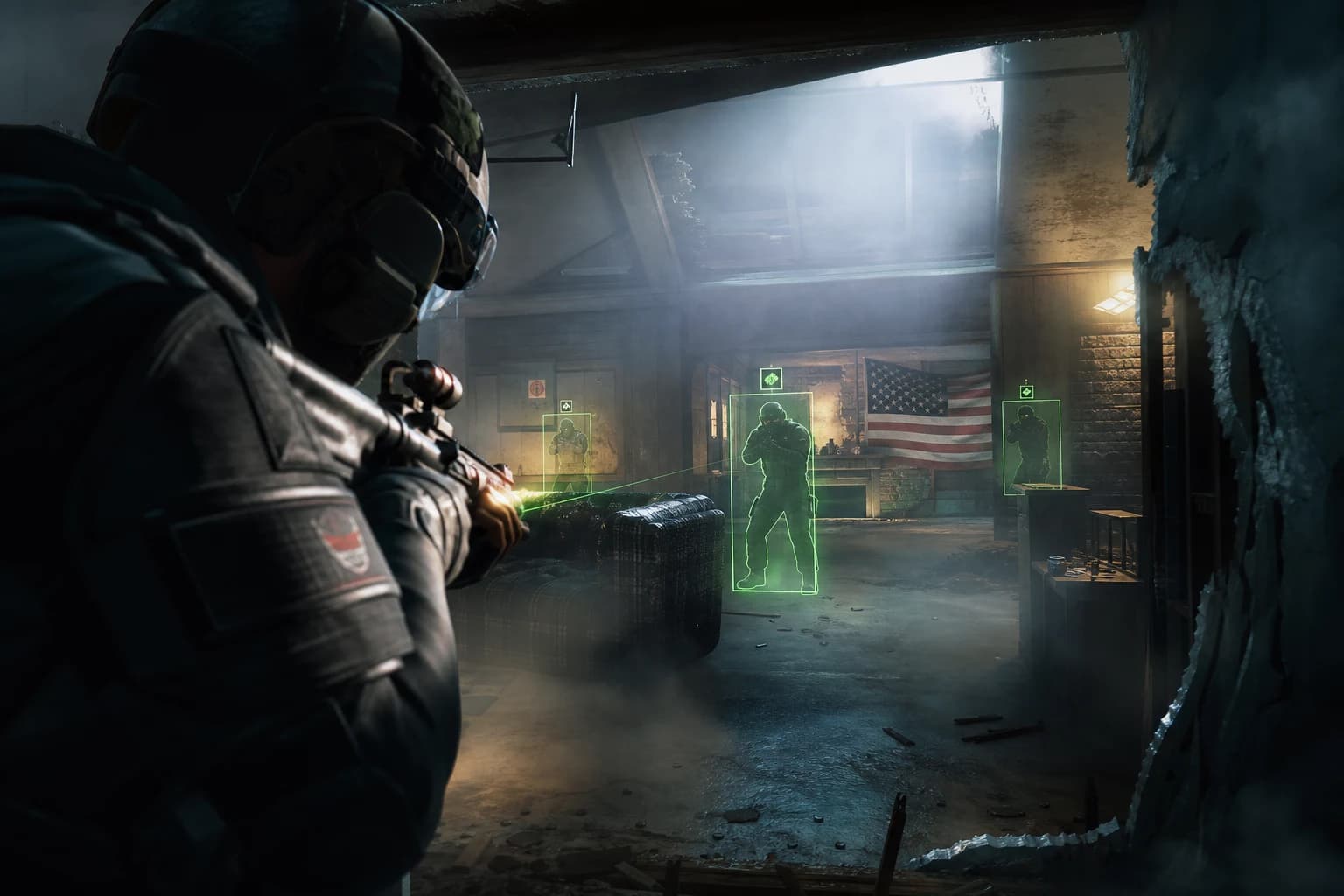
ESP is a software feature that overlays real-time information on top of the game scene. Enemy positions behind walls, their health status, weapons they're carrying, and movement directions are instantly reflected on your screen. In a game like Siege where narrow corridors, destructible walls, and operator abilities are decisive, this information advantage directly affects the outcome of every round.
However, to fully experience the advantage that ESP provides, proper configuration is essential. An incorrectly configured ESP both clutters the screen with unnecessary information and reduces performance. Parameters such as which information is displayed, the size of visual elements, color coding, and drawing distance all directly impact the experience. When playing at high ELO and too much information comes to the screen at once, your decision-making process slows down; when too little information comes, you can't fully leverage the feature's advantage.
In this guide, you'll find ESP settings optimized for Rainbow Six Siege, profiles prepared for different playstyles, and common configuration mistakes. Whether you're an aggressive entry fragger or a cautious support player, there's a setup suitable for every profile. We'll also walk through how products in our Rainbow Six Siege cheat category deliver their best performance with these settings, step by step.
Summary: In Rainbow Six Siege, ESP displays enemy positions, health information, and movement directions in real-time. Correct settings keep the screen clean and maximize advantage. This guide covers optimal configuration, game-style profiles, and common mistakes.
What is ESP and How Does It Work in Siege?
Basic ESP Components
ESP software reads enemy coordinates from the game's memory and creates visual elements on screen. In Rainbow Six Siege specifically, these elements are divided into the following categories:
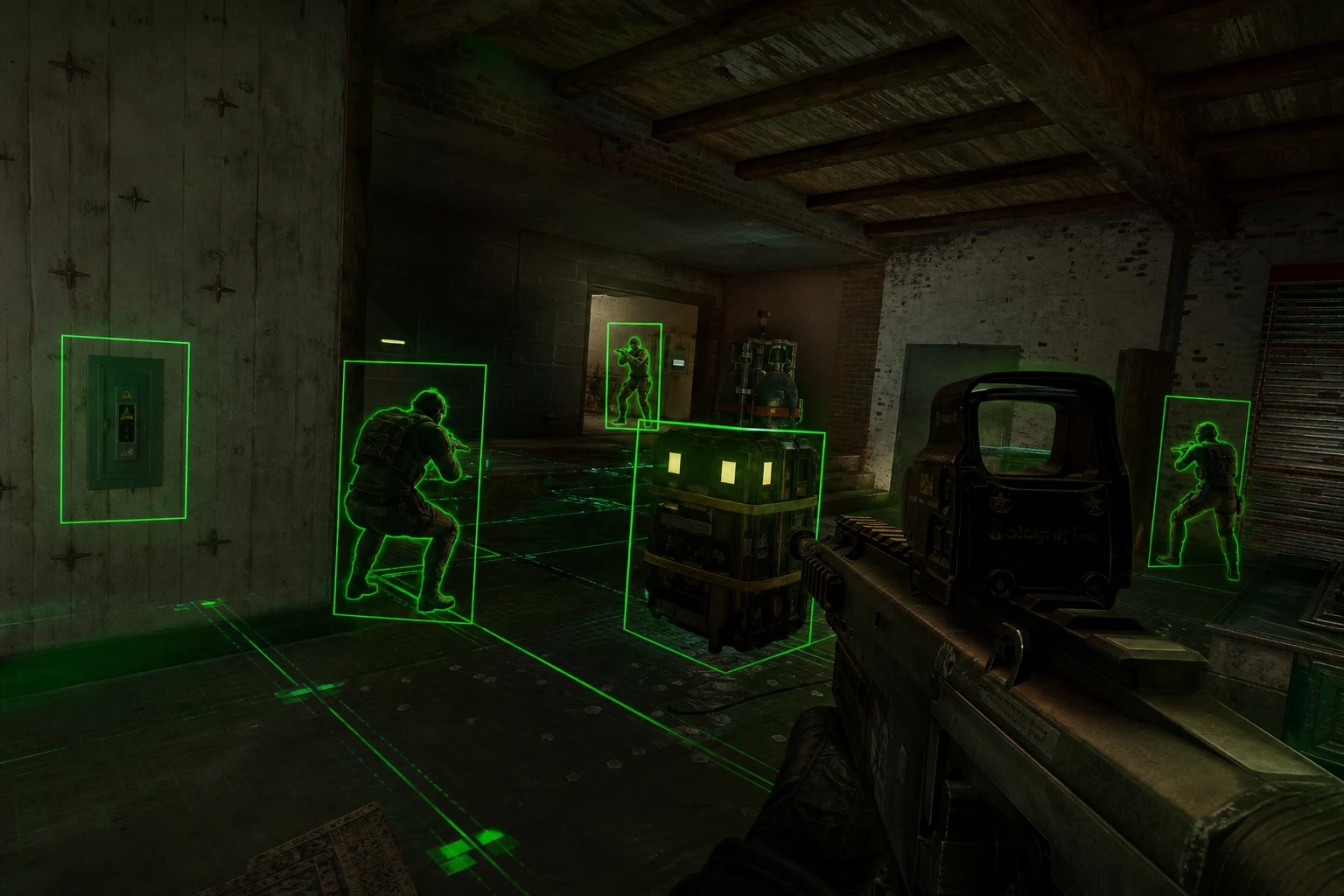
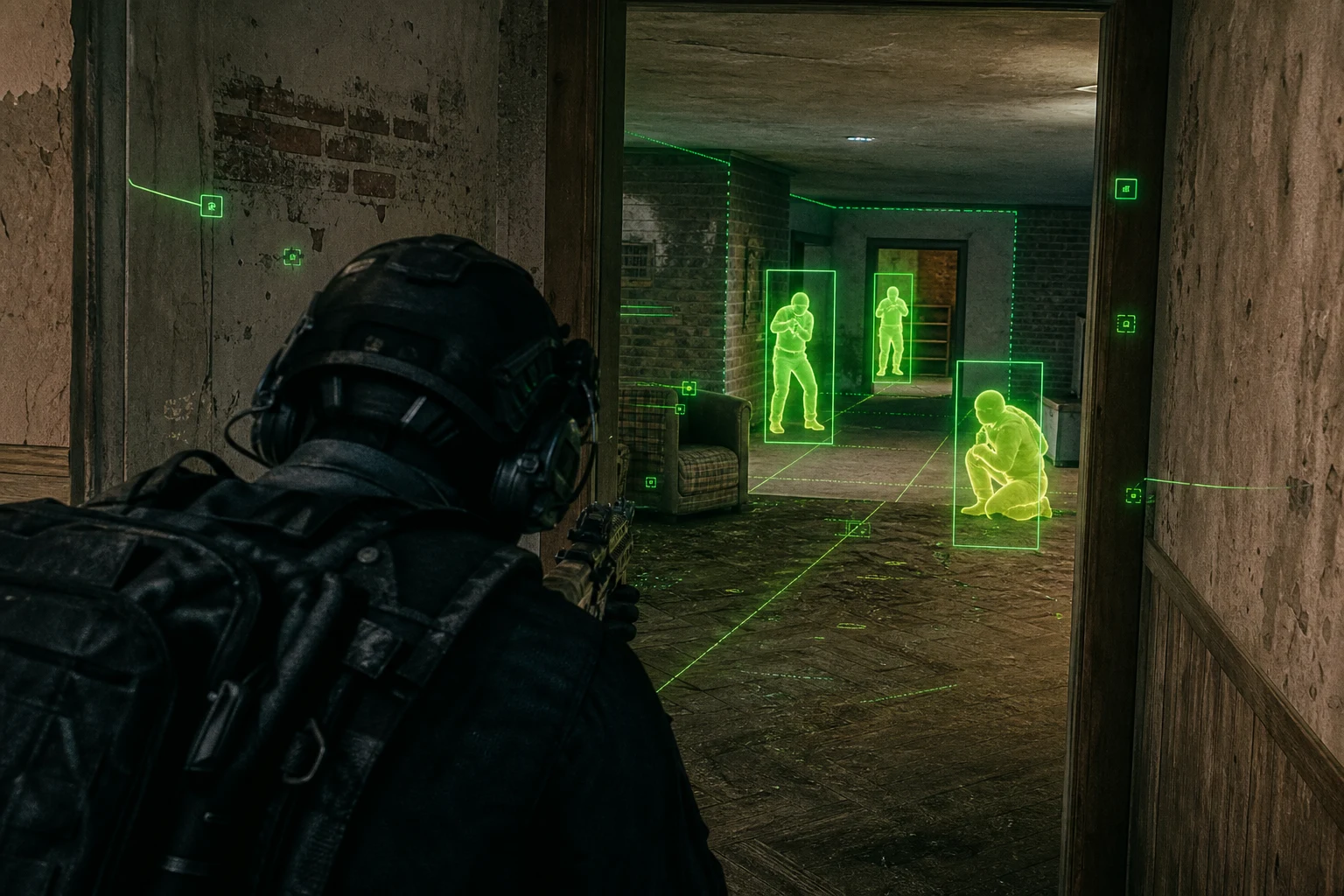
- Bounding Box: A rectangular box drawn around the enemy. Its position and size are updated in real-time.
- Skeleton: A line system showing the enemy's body outline. Lets you understand what position they're in (crouched, prone, standing).
- Healthbar: Shows the enemy's current HP value. Critical for determining which target to prioritize.
- Name Tag: Displays the operator name or username. Lets you know which ability to prepare for.
- Distance: Shows the distance to the enemy in meters. Useful for weapon selection and approach angle decisions.
- Weapon Info: Shows the weapon the enemy is holding. You instantly understand whether you need to stay close or keep distance.
ESP Advantages Specific to Siege
Siege's game mechanics make ESP particularly valuable. Thanks to destructible walls, knowing enemy position allows you to make accurate "wall bang" shots from the right spot. Operator ability information lets you know in advance whether the other team is using Pulse's heartbeat sensor, Vigil's drone jammer, or Jackal's tracking. Additionally, knowing the exact position of enemies in Siege's narrow corridors completely eliminates the disadvantage during corner clearing.
Basic ESP Settings and Recommended Values
Visual Quality and Performance Balance
The first and most important group of ESP settings determines how visual elements will be rendered. Very intensive visual settings reduce FPS; very minimal settings reduce information flow. The following table shows basic ESP values optimized for Siege:
| Setting | Recommended | Why |
|---|---|---|
| Bounding Box Type | 2D Corner Frame | Clutters the screen less than full rectangle, enemy silhouette remains clear |
| Box Color (Enemy) | Red (#FF3333) | High contrast, visible on every map background |
| Box Color (Team) | Green (#00FF88) | Provides instant friend-foe distinction |
| Line Thickness | 1.5px | Ideal balance between clarity and performance |
| Show Skeleton | On | Essential for understanding enemy position (crouched/standing) |
| Healthbar Position | Above Box | HP information doesn't obstruct your field of view while aiming |
| Maximum Drawing Distance | 80 meters | Sufficient for Siege maps; more brings unnecessary information |
| Render Frequency | Every frame | No lag with fast-moving enemies |
Additional Information Layers
Additional information layers that can be added on top of basic visual settings are as follows:
| Setting | Recommended | Why |
|---|---|---|
| Name Tag | On (Small Font) | Necessary for operator identification; large font is distracting |
| Distance Indicator | On (40m+ only) | You already see close range; critical for distant enemies |
| Weapon Info | Off (Aggressive) / On (Cautious) | Unnecessary in aggressive play; informs approach decision in cautious play |
| Operator Icon | On | You instantly know which ability to prepare for |
| Breath/Sound Indicator | Off | Has performance cost, limited benefit |
ESP Profiles by Playstyle
Profile 1: Aggressive Entry Fragger
This profile is designed for players who open doors first, rush in, and make quick decisions. If you play operators like Ash, Sledge, or Thermite, a clean screen saves lives. Too much information slows down decision-making while moving fast.
- Bounding Box: On, corner type, 1.5px
- Skeleton: On
- Healthbar: On
- Name Tag: Off
- Distance: Off
- Weapon Info: Off
- Max. Distance: 50 meters (sufficient for in-map engagements)
- Color: Bright red, high opacity
In this profile, priority is speed and clarity. Knowing where the enemy is is enough; the rest is up to your reflexes.
Profile 2: Balanced Roamer/Flank
For mid-tempo players who both attack and change positions. Compatible with operators like Caveira, Jäger, and Bandit. Both location and basic enemy information are visible on screen, but without excessive overload.
- Bounding Box: On, full rectangle, 1px
- Skeleton: On
- Healthbar: On
- Name Tag: On (small font, 10px)
- Distance: On (30m+ only)
- Weapon Info: Off
- Operator Icon: On
- Max. Distance: 70 meters
- Color: Orange (#FF8800), medium opacity
This profile creates the best balance between fast reaction and tactical awareness. It's the most preferred configuration at high ELO.
Profile 3: Cautious Support / Anchor
For players waiting in defensive positions, directing the team, and wanting maximum information about every enemy. Ideal with support operators like Doc, Rook, and Echo. More information layers are open on screen because you're not moving fast.
- Bounding Box: On, full rectangle, 2px
- Skeleton: On
- Healthbar: On (with full HP value)
- Name Tag: On (medium font, 12px)
- Distance: On (all distances)
- Weapon Info: On
- Operator Icon: On
- Max. Distance: 80 meters
- Color: Yellow (#FFFF00), high opacity
The goal in this profile is to have complete information about every enemy while leading the team. You can increase your entire team's advantage by informing teammates of enemy positions.
Common Configuration Mistakes
Mistake 1: Setting Maximum Distance Too High
Many users increase ESP distance to 200 meters. Most Siege maps are not larger than 80 meters. A 150-200 meter setting unnecessarily reduces performance and clutters the screen with irrelevant information. 80 meters is sufficient for all maps.
Mistake 2: Drawing Both Skeleton and Box with Thick Lines
If both bounding box and skeleton are drawn with thick lines, the enemy silhouette becomes a visual mess. Using 1-1.5px for box and 0.8px for skeleton preserves clarity and keeps the screen clean.
Mistake 3: Opening All Information Layers at Once
When name, HP, weapon, distance, operator icon, and sound indicator are all open simultaneously, the screen becomes unreadable. Especially when 3-4 enemies are visible at the same time, this information density makes decision-making difficult. Choose one of the profiles above based on your playstyle and close unnecessary layers.
Mistake 4: Color Choice Clashing with Map
Some Siege maps (Coastline, Villa) contain intense red and orange tones. On these maps, red ESP color can blend with the background. Changing color profile by map or using neutral colors like white (#FFFFFF) or cyan (#00FFFF) improves visibility.
Mistake 5: Leaving Render Frequency Low
Some software defaults to updating every 3-5 frames. In Siege's fast-paced engagements, this lag causes the ESP indicator to show 0.5-1 second behind the enemy's actual position. Set render frequency to "Every Frame" or the highest possible value.
Staying Undetected: Safe Usage Configuration
Correct Settings Against Anti-Cheat System
Rainbow Six Siege uses the BattlEye anti-cheat system. ForceCheat's R6 products offer undetected builds regularly updated against BattlEye's signature-based detection. However, for the software to remain undetected, some settings must be configured correctly on the user side:
| Setting | Recommended | Why |
|---|---|---|
| Overlay Mode | External | Doesn't directly interfere with game process, lower detection risk |
| Injection Timing | Before game starts | BattlEye scans at startup; pre-loading is safer |
| Stream Proof Mode | On | ESP becomes invisible during screen sharing or recording |
| Anti-Screenshot | On | Prevents in-game screenshot system from capturing ESP |
| Kernel Level Protection | Enabled (if supported) | Additional protection layer against BattlEye's deep scans |
Behavioral Security Tips
Besides technical settings, how you use the software also matters. When automated systems resort to behavioral analysis, using the information ESP provides too obviously can draw attention. Instead of reacting perfectly every time to an enemy directly behind a wall, occasionally making reconnaissance moves creates a more natural gameplay profile. This is a choice of your playstyle, not the software.
Additionally, keeping the software updated is of critical importance. BattlEye regularly updates its signature database. ForceCheat products release new versions in parallel with these updates; therefore, follow update notifications from your product panel and don't continue using old versions.
ESP Configuration by Map
Closed Area Maps: Clubhouse, Bank, Chalet
On these maps, corridors are narrow and engagement distances are short. Reducing max ESP distance to 50 meters is sufficient. The skeleton feature is particularly valuable on these maps because it lets you understand whether the enemy is leaning against a corner or standing directly in front of you. Use high-contrast colors like red or white.
Open Area Segmented Maps: Coastline, Villa, Skyscraper
On these maps, both indoor and outdoor engagements occur. Increase max distance to 80 meters. Keeping the distance indicator on lets you notice enemies transitioning from outside to inside beforehand. Pay attention to color choice on these maps; Coastline's blue-orange palette can clash with red ESP, so prefer cyan or yellow.
Multi-Story Maps: Tower, Kafe Dostoyevski
On these maps with intense vertical gameplay, enemies can come from above or below. In these scenarios, the skeleton feature along with height indicator (Z-axis information) should be on in products that support it. ForceCheat's R6 cheat packages support this feature.
Conclusion
When properly configured, ESP in Rainbow Six Siege completely reshapes the information dimension of the game. When enemy positions behind walls, operator information, and health status are instantly at your fingertips, you enter every round prepared. However, the "turn everything on, maximize everything" approach doesn't work to fully experience this advantage. The values shared in this guide are optimized for both performance and usability.
Choosing the right profile based on your playstyle — aggressive, balanced, or cautious — multiplies the value that ESP adds to you. As an aggressive entry fragger, you can gain speed with a minimal configuration; in a support role, you can direct your team with full information layers. In both cases, correct configuration of basic visual settings (box type, color, distance) comes first.
Regarding staying undetected, update tracking is as critical as technical settings. ForceCheat products' continuously updated undetected structure keeps you protected against BattlEye's regular updates; however, not neglecting product updates is user responsibility.
If you're looking for advantages in games other than Siege, check out our Valorant cheat category or PUBG Mobile cheat category. We have products specially developed for each game and regularly updated. Related content includes 7 ways to increase your headshot percentage in Rainbow Six Siege and our Hunt Showdown Aimbot guide. Visit our R6 category for all Rainbow Six Siege products and take your game to the next level.
Frequently Asked Questions
Can bounding box and skeleton be used together with Rainbow Six Siege ESP?
Yes, both can be used together and complement each other. While the bounding box shows the enemy's general position and size, the skeleton clarifies what position they're in (crouched, prone, standing). However, keeping the line thickness of both low (1-1.5px) prevents visual clutter.
I'm experiencing FPS drops while using ESP, what should I do?
First, reduce the maximum drawing distance (80m is sufficient). Then close unnecessary information layers: sound indicator, full weapon information, and numerous text tags negatively affect FPS. Setting overlay mode to external also improves performance.
When will Rainbow Six Siege become free?
Ubisoft has not announced a permanent free-to-play model for Siege. The game occasionally offers free trial weeks, but full access requires purchase. You can follow current campaigns on Ubisoft's official channels.
Are ESP and wallhack the same thing?
Technically, they're different. Wallhack makes walls visually transparent; ESP displays enemy information as an overlay on screen without changing the appearance of walls. ESP is a more advanced system and covers all advantages that wallhack provides; additionally, it also offers HP, weapon, and operator information.
Is ForceCheat's R6 ESP undetected against BattlEye?
ForceCheat products are regularly updated in parallel with BattlEye updates and include kernel-level protection, stream proof, and anti-screenshot features to maintain undetected status. Regularly following product updates and not using old versions is the most basic condition for staying undetected.
Which ESP color shows better on which map?
Red or white works well on dark-toned maps (Clubhouse, Bank). On light-colored or orange-toned maps (Coastline, Villa), cyan (#00FFFF) or yellow (#FFFF00) provides higher contrast. Some advanced ESP software may offer automatic color adjustment based on map background.
Do I need to restart the game to change ESP settings?
This depends on the software you're using. Most modern ESP software allows real-time setting changes through an in-game menu (usually opened with Insert or F5 key). ForceCheat products support this feature; you can change profiles without closing the game.
Share this post
Marvel Rivals Aimbot: Dominate Your Opponents with Expert Tips
Boost Your Dead by Daylight Performance 5x with Cheats!
// related posts
Related Posts
Marvel Rivals Aimbot Experience: The Path to Quick Wins
Discover how aimbot and other cheat tools work in Marvel Rivals, which features will give you the edge, and how to choose the right tool for your playstyle.
October 9, 2026
Rust ESP Map Control: Seeing Enemy Positions in Advance
Master map control in Rust using ESP to see enemy positions beforehand. Discover optimal settings, profiles, and strategies for dominating the game in this comprehensive guide.
October 8, 2026
PUBG Final Circle: Best Settings and Strategies to Win
Struggling in PUBG's final circle? Master the right cheat settings and configurations to turn every endgame in your favor. Complete guide to dominating the final zone.
October 8, 2026