
Marvel Rivals Aimbot: Dominate Your Opponents with Expert Tips
- Introduction: Why Your Marvel Rivals Aimbot Might Not Be Working
- Solution 1: Upgrade Your Aimbot Software to the Latest Version
- Symptom: Software Opens But Isn't Active in Game
- Solution 2: Temporarily Disable Antivirus and Windows Defender
- Symptom: Loader Downloads But Gets Deleted When Running
- Solution 3: Run the Game and Loader with Administrator (Admin) Rights
- Symptom: Aimbot Appears Active But Target Lock Doesn't Work
- Solution 4: Optimize FOV, Smooth, and Bone Settings
- Symptom: Aimbot Works But Targeting Seems Inaccurate or Delayed
- Recommended Basic Settings
- Solution 5: Reinstall the Kernel Driver and Apply Safe Boot Sequence
- Symptom: Game Crashes on Startup or "Anti-Cheat Error" Message
- Solution 6: Align In-Game Graphics Settings with Aimbot
- Symptom: ESP Colors Not Visible or Aimbot Locks Onto Wrong Position
- Recommended In-Game Settings
- Solution 7: Check Firewall (Firewall) and Network Settings
- Symptom: Loader Shows "Cannot Connect to Server" or "License Cannot Be Verified" Error
- Still Not Resolved? Contact ForceCheat Support
- Maximum Advantage with Marvel Rivals Aimbot: Pro Tips
- Aimbot Adjustment Based on Character Selection
- ESP and Aimbot Combination
- Basic Rules for Staying Undetected
- Conclusion
- Frequently Asked Questions (FAQ)
- Which characters does Marvel Rivals aimbot work best with?
- How often is ForceCheat's Marvel Rivals software updated?
- How do I open the aimbot menu in-game?
- Can I use aimbot and ESP at the same time?
- What should I do if the loader shows a "License invalid" error?
- What should I do if aimbot doesn't work right after a game update?
Introduction: Why Your Marvel Rivals Aimbot Might Not Be Working
Marvel Rivals, developed by NetEase Games, has captured the hearts of millions of players in a short time with its competitive 6v6 hero-shooter format. With fast-paced combat dynamics, dozens of Marvel characters, and a constantly evolving meta, the game demands serious skill in the competitive arena. Especially at Diamond rank and above, opponents play extremely aggressively; the difference between reflexes, aim precision, and character knowledge determines the fate of the match. This is exactly where an aimbot software comes into play: combined with target lock, automatic shot timing, and ESP support, you can gain overwhelming superiority against the opposing team.
However, when you decide to use this advantage, you may occasionally encounter technical obstacles. The aimbot software won't open, it closes after the game starts, FOV settings don't work as desired, or the target lock mechanism doesn't respond as expected. The vast majority of these issues stem from installation errors, using outdated versions, or misconfiguration — not from the software itself.
In this guide, we'll address the most common problems encountered when using Marvel Rivals aimbot and provide step-by-step solutions. Our goal is to help you get maximum performance from the premium cheat software that ForceCheat offers. With proper installation, correct settings, and good usage habits, you can take your aimbot experience to a completely different level. Knowing what the problem is is half the solution — so follow the troubleshooting steps below in order.
Marvel Rivals' kernel-level anti-cheat system can instantly detect many low-quality software on the market. For this reason, it's critical that the aimbot you use is constantly updated and protected in an undetected state. ForceCheat's Marvel Rivals cheat category brings together products that meet these standards. Now let's move on to the problems and solutions.
Summary: If your Marvel Rivals aimbot isn't working, try these steps in order: upgrade the software to the latest version, disable antivirus, run the game as administrator, optimize FOV and smooth settings, reinstall the kernel driver, and contact support. Proper configuration will resolve the issue.
Solution 1: Upgrade Your Aimbot Software to the Latest Version
Symptom: Software Opens But Isn't Active in Game
Marvel Rivals receives regular patches, and with each major update, the game's internal structure changes. An older version aimbot becomes incompatible with new game files and may silently disable or appear to run in the background without activating. This problem is especially common right after new season updates.
- Log into your ForceCheat account and check the version number of your purchased Marvel Rivals product.
- Compare the "Last Updated" date on the product page with the game's latest patch date.
- If a new version is available, completely uninstall the current installation (clean Program Files and AppData folders).
- Download the latest version and perform a clean installation.
- Before launching the game, run the aimbot loader with administrator privileges.
After switching to the latest version, the aimbot will become active in-game and the target lock function will work smoothly. ForceCheat products are regularly updated to keep pace with Marvel Rivals updates.
Solution 2: Temporarily Disable Antivirus and Windows Defender
Symptom: Loader Downloads But Gets Deleted When Running
Aimbot software can be flagged as malware by antivirus programs due to their system-interfering nature. This happens especially often when Windows Defender's real-time protection is enabled: the file is automatically quarantined or deleted seconds after download.
- Open Windows Security Center → "Virus & threat protection" → Turn off "Real-time protection".
- If you're using third-party antivirus (Avast, Kaspersky, Bitdefender, etc.), right-click from the system tray and select "Disable".
- Add the loader file to Windows Defender exceptions: Settings → Exclusions → Add folder → Select the aimbot installation directory.
- Run the aimbot loader again and complete the installation.
- After installation is complete, you can re-enable antivirus; as long as the installation directory remains in the exception list, you won't have issues.
After this step, the loader will work smoothly and the aimbot will automatically activate when Marvel Rivals launches.
Solution 3: Run the Game and Loader with Administrator (Admin) Rights
Symptom: Aimbot Appears Active But Target Lock Doesn't Work
Cheat software running at kernel level requires administrator rights for full access to system resources. When run with standard user rights, the software may open but cannot properly integrate with game processes; as a result, even if the aimbot menu is visible, basic functions like target lock and ESP remain inactive.
- Right-click the Marvel Rivals shortcut → "Properties" → "Compatibility" tab → Check "Run this program as an administrator".
- Repeat the same process for the aimbot loader file.
- Launch the loader first, click the "Inject" or "Launch" button, then open Marvel Rivals.
- After the game reaches the main menu, use the designated key combination (usually INSERT or F1) to open the aimbot menu.
Running with administrator rights is a critical step that's often overlooked, especially on Windows 11 systems. After this change, the aimbot operates at full capacity.
Solution 4: Optimize FOV, Smooth, and Bone Settings
Symptom: Aimbot Works But Targeting Seems Inaccurate or Delayed
Even if the software is technically working, misconfigured settings can make the aimbot nearly useless. Considering Marvel Rivals' fast character movements and vertical flight mechanics, default settings don't always deliver the best results.
Recommended Basic Settings
- FOV (Field of View) Value: 180–220 pixels is ideal for starting. Too low FOV (e.g., 80) causes you to miss targets; too high values increase the risk of locking onto wrong targets.
- Smooth (Smoothing) Value: 5–8 provides natural-looking movement. Low values like 1–2 create sudden "snap" movements and can be noticeable; values of 10+ extend reaction time.
- Target Bone (Bone Targeting): Try "Neck" or "Upper Chest" instead of "Head". In Marvel Rivals, some characters have small head hitboxes; neck or chest targeting delivers more consistent damage.
- Visibility Check: Keep this option enabled. Locking onto targets behind walls looks odd without ESP and can draw attention.
- Save the settings and test in a bot match, then move to real matches.
After these optimizations, the aimbot works much more accurately and smoothly in Marvel Rivals' dynamic combat environment. Especially against airborne characters like Spider-Man or Iron Man, "Neck" bone targeting makes a noticeable difference.
Solution 5: Reinstall the Kernel Driver and Apply Safe Boot Sequence
Symptom: Game Crashes on Startup or "Anti-Cheat Error" Message
Marvel Rivals uses a kernel-level anti-cheat system. Low-quality cheat software directly conflicts with this system, causing the game to crash. ForceCheat's premium software uses special kernel drivers to prevent this conflict; however, if the driver isn't installed properly, issues can occur.
- Navigate to the aimbot software's installation folder and find the "Driver" or "Kernel" subfolder.
- Run the "Uninstall Driver" tool with administrator rights to remove the current driver.
- Restart your computer (don't skip this step — old driver remnants can cause problems).
- After restart, open the loader with administrator rights and run the "Install Driver" option.
- After driver installation completes, inject the loader first, then launch Marvel Rivals. Don't reverse the order.
The correct boot sequence is critical: Loader → Inject → Game. When you follow this sequence, you won't experience anti-cheat conflicts and the game runs stably. This step also helps maintain undetected status.
Solution 6: Align In-Game Graphics Settings with Aimbot
Symptom: ESP Colors Not Visible or Aimbot Locks Onto Wrong Position
Some graphics settings can prevent the ESP overlay from rendering properly. Exclusive fullscreen mode, DirectX 12, and some post-processing effects negatively impact overlay visibility.
Recommended In-Game Settings
- Screen Mode: Switch from "Exclusive Fullscreen" to "Borderless Windowed" mode. This mode ensures the ESP overlay works much more reliably.
- DirectX Version: Use DirectX 11 if possible. DX12 can create incompatibilities with some kernel drivers.
- V-Sync: Turn it off. V-Sync increases the aimbot's reaction time.
- Motion Blur and Depth of Field: Turn both off. These effects both make targeting harder and blur ESP indicators.
- Save the settings and restart the game, then inject the aimbot loader.
After this configuration, ESP boxes and the aimbot FOV circle appear clearly on screen. Borderless mode also speeds up ALT+TAB switching, providing great convenience when switching between loader and game.
Solution 7: Check Firewall (Firewall) and Network Settings
Symptom: Loader Shows "Cannot Connect to Server" or "License Cannot Be Verified" Error
Some ForceCheat products require an internet connection for license verification. A Windows Firewall or router-level restriction may prevent the loader from reaching the verification server. As a result, the software won't open or shows a "License invalid" error.
- Windows Firewall → "Allow an app through firewall" → Add the loader file to the list, check both Private and Public networks.
- If you're using a VPN, temporarily disable it; some VPN servers block license verification IPs.
- Change your DNS settings to Google DNS (8.8.8.8 / 8.8.4.4) and test the connection again.
- If your router has port forwarding requirements, request the necessary port information from ForceCheat support.
Once the network issue is resolved, the loader completes license verification and the software becomes fully active. License verification typically takes 2–3 seconds.
Still Not Resolved? Contact ForceCheat Support
If the problem persists after applying all seven solutions above, it may be a configuration issue specific to your system or a very rare compatibility problem. There's no reason to panic — ForceCheat support is available 24/7 for exactly these situations.
When submitting a support request, have the following information ready: your operating system version (Windows 10/11, build number), the product name and version you're using, the exact text of any error message or a screenshot, and which of the above steps you've already tried. With this information, support can diagnose the issue much faster.
Also, if you're looking for cheat solutions for other popular games, check out our Hunt Showdown Aimbot guide or review our Rainbow Six Siege headshot rate improvement guide.
Maximum Advantage with Marvel Rivals Aimbot: Pro Tips
Aimbot Adjustment Based on Character Selection
Each Marvel Rivals character uses different weapon mechanics, and customizing your aimbot settings accordingly can significantly boost your performance. For example, if you're playing Hawkeye, low smooth values (3–4) and high FOV (200+) deliver the best results because arrow shots deal damage in one hit. Conversely, with characters like Scarlet Witch that fire continuously, increasing the smooth value to 7–8 provides consistent lock-on over the target and looks more natural.
ESP and Aimbot Combination
Using ESP (wallhack) in combination with aimbot rather than aimbot alone creates a completely different gaming experience in Marvel Rivals. With ESP, you can see the positions, health status, and movement direction of enemies behind walls. When you combine this information with aimbot, you can position yourself before enemies round a corner and fire at exactly the right moment. The map control strategies we explained in our Rainbow Six Siege ESP guide largely apply to Marvel Rivals as well.
Basic Rules for Staying Undetected
ForceCheat's Marvel Rivals software is regularly updated against anti-cheat systems. However, user behavior also plays a decisive role in this process. Keep aimbot smooth values reasonable, aim for a natural performance of 70–80% accuracy per match rather than 100%. Instead of opening the game immediately after each update, wait for ForceCheat to post update notes on the product page. These habits ensure a long-term and uninterrupted user experience.
Conclusion
Marvel Rivals aimbot issues are technical obstacles that are extremely easy to resolve with the right steps. Keeping the software updated, applying the correct boot sequence, setting antivirus exceptions, and optimizing in-game graphics settings — these four basic steps eliminate the vast majority of problems encountered. For the rare remaining cases, ForceCheat's 24/7 support team is always there for you.
Marvel Rivals is a game with constantly evolving meta and newly added characters that continuously raises the competitive bar. In this environment, the aimbot and ESP combination transforms not just your individual performance but your team dynamics as well. With a properly configured aimbot, reaching Celestial or Eternity rank becomes a much more achievable goal.
For seamless installation and optimal settings, visit our Marvel Rivals cheat category; product descriptions list the features supported by each software, compatible versions, and installation requirements in detail. If you're looking for advantages in other games, check out our Valorant cheat category or our PUBG Mobile cheat category. Everything you need to win is here.
Frequently Asked Questions (FAQ)
Which characters does Marvel Rivals aimbot work best with?
Aimbot delivers the most efficient results with hitscan (instant hit) mechanic characters. With characters like Hawkeye, Punisher, and Black Widow, high FOV and low smooth values maximize one-shot advantage. With characters that fire continuously, mid-range smooth values provide more consistent damage.
How often is ForceCheat's Marvel Rivals software updated?
Updates are typically released within 24–72 hours after each major game patch. You can stay current by monitoring the "Last Updated" field on the product page and downloading the latest version in time. It's recommended to wait for the update rather than opening the game before one is released.
How do I open the aimbot menu in-game?
The default key is usually INSERT or F1, but this may vary depending on the loader. The exact key information is in the README file that comes with the product or in the description on the ForceCheat product page. If you want to change the key, you can customize it from the loader settings menu.
Can I use aimbot and ESP at the same time?
Yes, ForceCheat's Marvel Rivals packages typically include both aimbot and ESP together. Using both features simultaneously increases both targeting precision and map awareness at the same time. You can confirm the package contents on the product page.
What should I do if the loader shows a "License invalid" error?
First, check your internet connection and firewall settings (Solution 7). If the problem persists, log into your ForceCheat account and verify that your license key is active. Attempting to use the same license on multiple devices can also trigger this error; reset active sessions and try again.
What should I do if aimbot doesn't work right after a game update?
This is completely normal. When a Marvel Rivals update is released, don't use the aimbot until ForceCheat prepares a compatible update. Monitor the product page or ForceCheat's announcement channel; you'll receive a notification when the update is ready. Attempting to force the old version to run after an update can cause problems.
Share this post
7 Ways to Improve Your Headshot Rate in Rainbow Six Siege
Rainbow Six Siege ESP Settings: Guide to Seeing Enemy Positions
// related posts
Related Posts
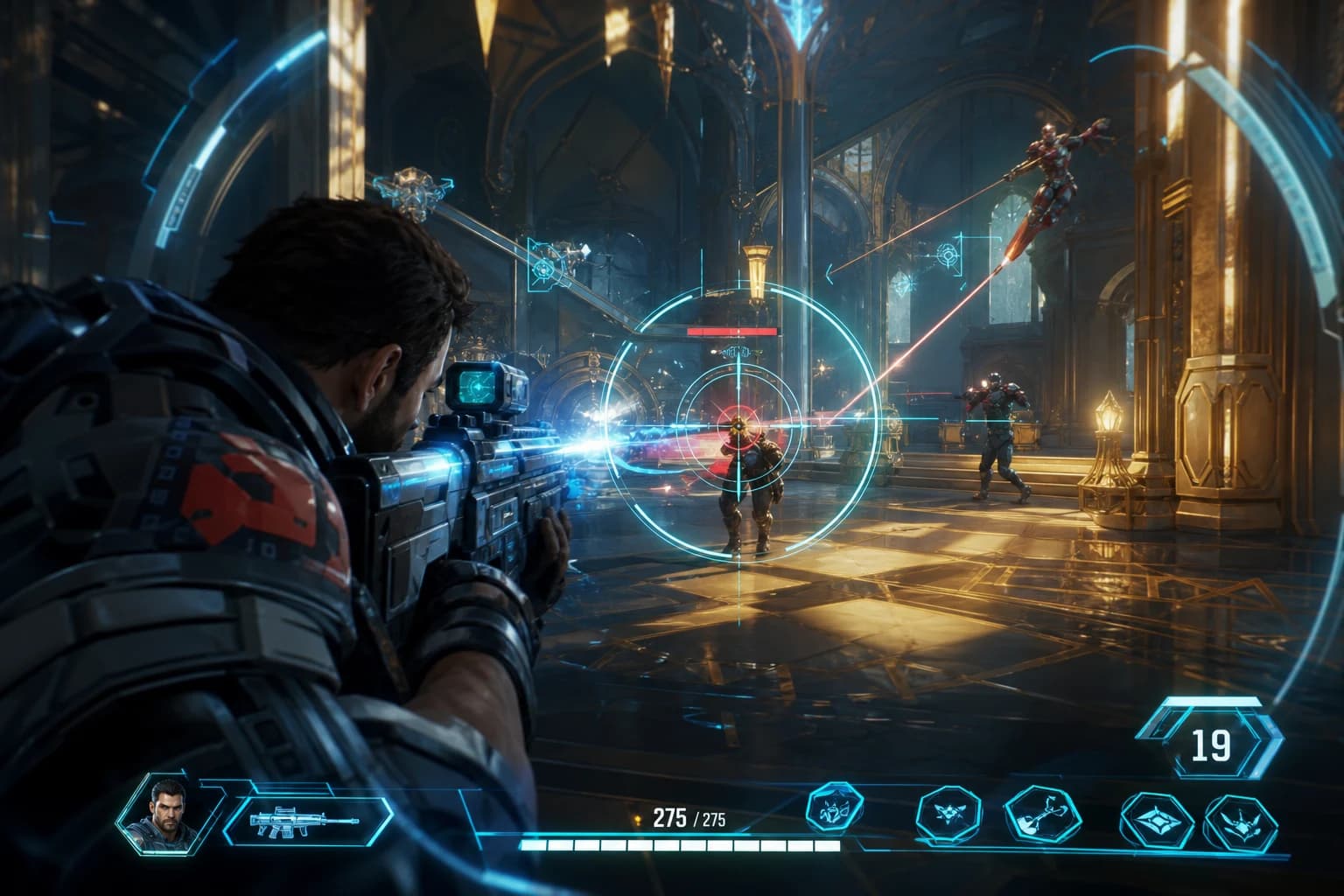
Marvel Rivals Aimbot Experience: The Path to Quick Wins
Discover how aimbot and other cheat tools work in Marvel Rivals, which features will give you the edge, and how to choose the right tool for your playstyle.
October 9, 2026
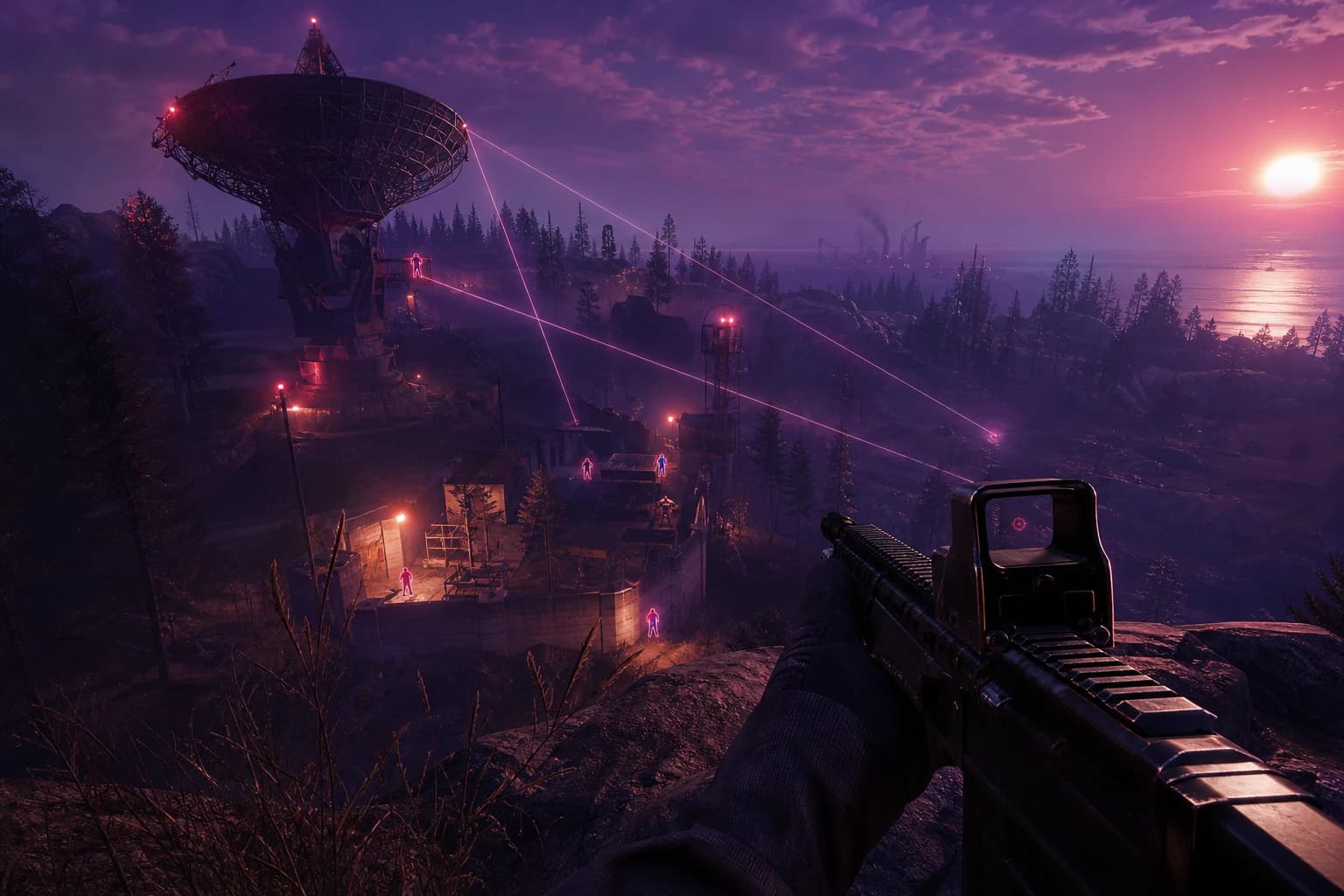
Rust ESP Map Control: Seeing Enemy Positions in Advance
Master map control in Rust using ESP to see enemy positions beforehand. Discover optimal settings, profiles, and strategies for dominating the game in this comprehensive guide.
October 8, 2026
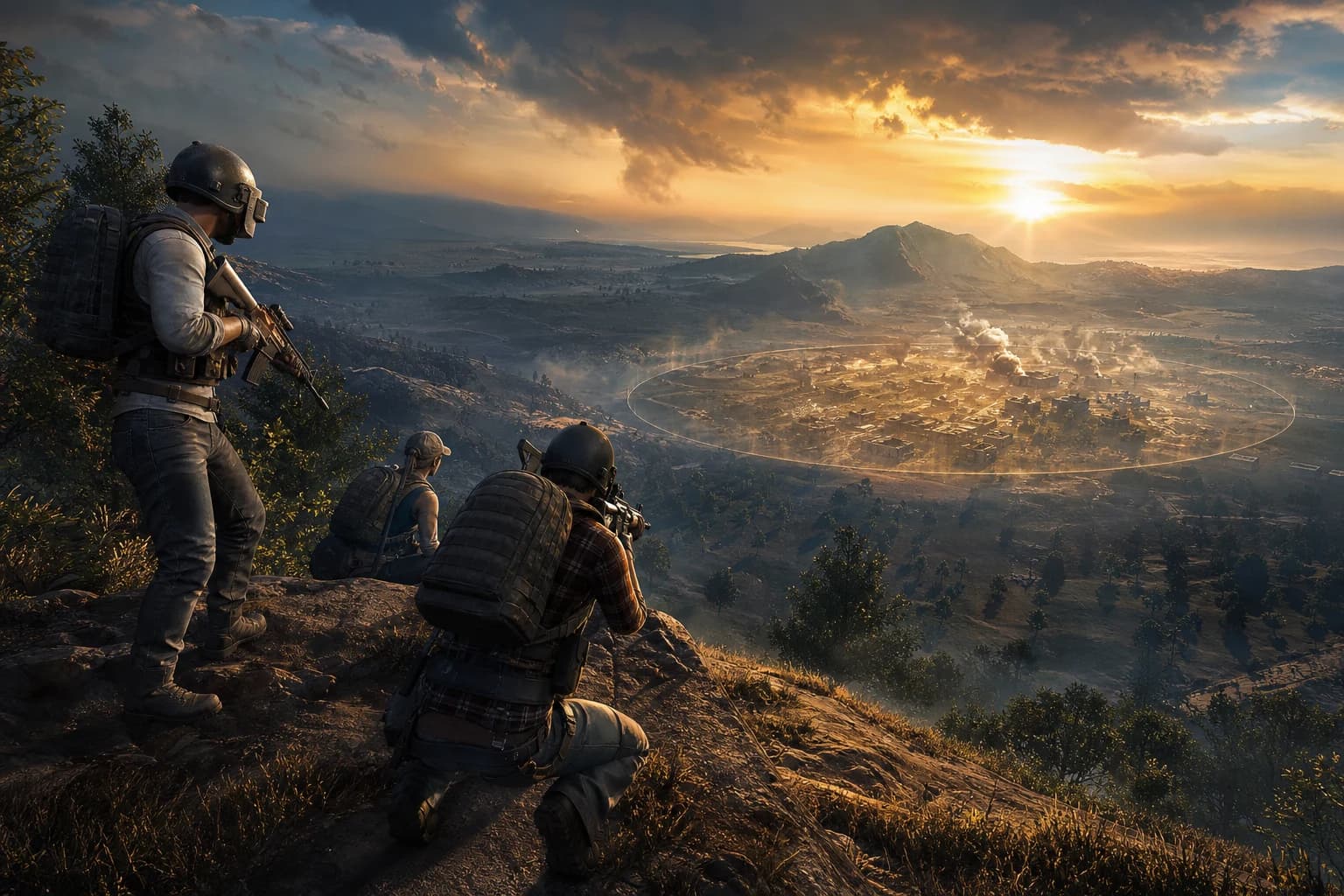
PUBG Final Circle: Best Settings and Strategies to Win
Struggling in PUBG's final circle? Master the right cheat settings and configurations to turn every endgame in your favor. Complete guide to dominating the final zone.
October 8, 2026