


Stalcraft Cheat Software Setup Guide: Top 8 Steps
- Introduction: The Smart Way to Get Ahead in Stalcraft
- Why ForceCheat Stalcraft Software?
- Continuously Updated Infrastructure
- Feature-Rich and Customizable
- Step 1 — Purchase and Member Panel Access
- Package Comparison: Which One Is Right for You?
- Step 2 — System Preparation and Prerequisites
- Disk and Folder Layout
- Step 3 — Antivirus and Firewall Management
- Step 4 — Running the Injector as Administrator
- License Verification Step
- Step 5 — Launching the Game and Injection Timing
- First Check After Injection
- Step 6 — ESP and Radar Settings
- Color Coding and Distance Filter
- Step 7 — Aimbot Configuration
- FOV and Smoothing Balance
- Target Priority and Bone Selection
- Step 8 — Advanced Features and In-Game Optimization
- Inventory and Item ESP
- No Recoil and No Spread
- Tips to Maximize Performance
- Compatibility with Game Graphics Settings
- Pre-Session Checklist
- Conclusion
- Frequently Asked Questions (FAQ)
- Which operating systems does ForceCheat Stalcraft software support?
- Does the software continue to work after Stalcraft updates?
- What should I do if the game crashes during injection?
- What FOV value should I set for aimbot?
- Does ForceCheat offer products for games other than Stalcraft?
- Can I receive a warning before my license expires?
Introduction: The Smart Way to Get Ahead in Stalcraft
Stalcraft is a rapidly growing survival shooter in the Turkish gaming community, inspired by the S.T.A.L.K.E.R. universe with its intense atmosphere, complex maps, and competitive PvP dynamics. Encountering sudden enemy raids while gathering resources in radioactive zones, neutralizing rivals in narrow corridors, or safely transporting high-value equipment — all of this requires serious reflexes, map knowledge, and strategy.
But what if there was a way to reduce all this pressure and get much more out of every session? That's where ForceCheat's Stalcraft software comes in. A player equipped with the right tools can see enemy positions on the map in advance, maximize aiming precision, and emerge victorious from every encounter.
This guide covers in detail how to install our Stalcraft cheat software, which features work in which scenarios, and the steps you need to follow to maximize your performance. Whether you're a beginner or an experienced STALKER, this guide will provide you with a clear and actionable roadmap.
We've broken down the installation process into eight key steps; in each step you'll find concrete configuration recommendations, important considerations, and practical usage scenarios. We've also answered the most frequently asked questions in the FAQ section. If you're ready, let's begin.
Summary: To install ForceCheat Stalcraft software, prepare your system, manage antivirus, run the injector as administrator, optimize in-game settings, and configure ESP/aimbot features by scenario. Completed in eight steps with instant results.
Why ForceCheat Stalcraft Software?
There are many Stalcraft tools on the market; however, most of them quickly become obsolete against game updates or show unstable performance. ForceCheat's Stalcraft products stand out with their regular update cycle and optimized injection infrastructure.
Continuously Updated Infrastructure
Stalcraft developers frequently update the game with patches. The ForceCheat team quickly restores software compatibility after each major patch. This ensures that the product you purchase maintains the same functionality in the coming weeks. You can track update notifications through the Discord channel or your member panel.
Feature-Rich and Customizable
ForceCheat Stalcraft software offers multiple modules under one roof: ESP (wallhack), aimbot, radar, speed adjustment, and inventory information. Each module can be toggled on and off individually, and precision values can be adjusted according to user preference. This flexibility appeals to both aggressive and cautious playstyles.
Step 1 — Purchase and Member Panel Access
Everything starts with choosing the right product. Visit the ForceCheat Stalcraft category and review the available package options. Daily, weekly, and monthly license options are available; if you're trying it for the first time, starting with a daily license and testing software compatibility with your system is a good strategy.
After completing your purchase, your license key and download link will be sent to your registered email address. You can also access this information anytime by logging into your member panel. Since the download link remains valid for a certain period, save it to a safe location if you'll be starting installation later.
Package Comparison: Which One Is Right for You?
Daily license is ideal for players trying the software for the first time or planning a single intensive gaming session. Weekly license is more economical for tournament preparation or those wanting to quickly complete a specific content section. Monthly license is the most advantageous option for players who play regularly and want to use all features of the software long-term. In terms of price/performance, monthly license minimizes cost per session.
Step 2 — System Preparation and Prerequisites
Before installing the software, make sure your system meets the basic requirements. Stalcraft itself requires a mid-to-high-end GPU and at least 8 GB of RAM; the software creates minimal additional CPU load, so don't expect a significant increase in system requirements.
Windows 10 (64-bit, version 1903 and later) or Windows 11 is supported as the operating system. Verify that .NET Framework 4.8 and Visual C++ Redistributable packages are up to date; if missing, you can download and install them free from Microsoft's official website. Skipping this step may cause errors during installation.
Disk and Folder Layout
We recommend placing software files in a separate, easily accessible location outside the game folder. For example, choosing a short path like C:\FC_Tools\Stalcraft makes it easier for the injector to find the file and prevents potential path errors. Avoid using Turkish characters or spaces in folder names.
Step 3 — Antivirus and Firewall Management
Since cheat software requires access to system resources and game memory, Windows Defender and third-party antivirus programs may occasionally flag these files as false positives. This can cause the software to lose functionality or fail to start.
Before installation, temporarily disable Windows Defender's real-time protection or add the ForceCheat folder to the exclusion list. The second method is more practical: follow Windows Security → Virus & threat protection → Settings → Exclusions → Add an exclusion → Folder and add your FC_Tools folder to the list. This way, antivirus will skip scanning only this folder while other system protections remain active.
Step 4 — Running the Injector as Administrator
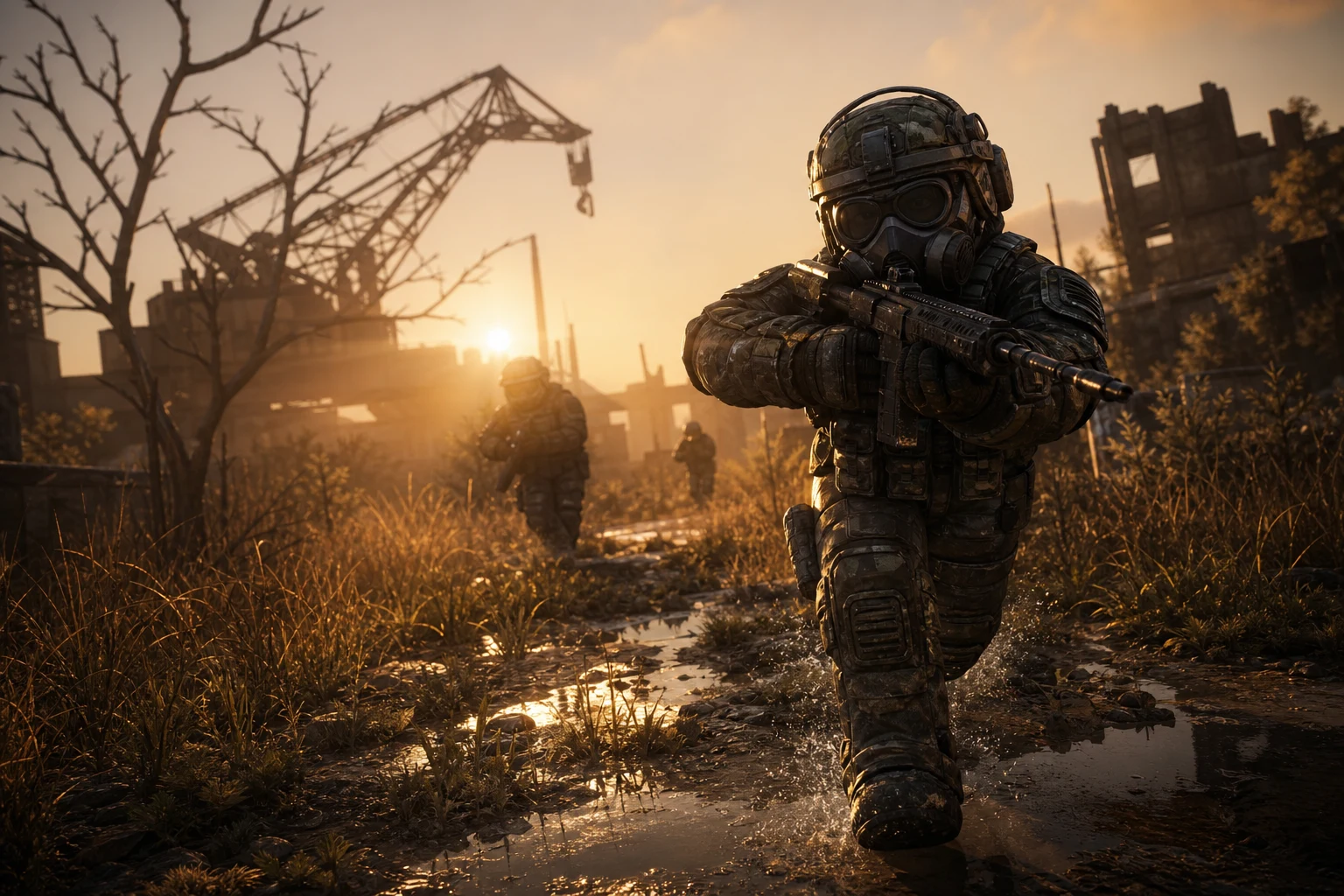
The ForceCheat injector requires administrator privileges to interfere with the game process. Right-click the injector icon and select "Run as administrator." For a more practical solution, create a shortcut to the injector, right-click the shortcut, go to Properties → Advanced → check "Run as administrator"; this way you can launch it directly without additional confirmation each time.
License Verification Step
When the injector opens, it will ask you to enter your license key. Copy and paste the key you received in the email after purchase. Once the key is verified, the injector main screen opens and you'll see a list of available modules. When the license expires, the software automatically becomes disabled; you can renew it from your member panel.
Step 5 — Launching the Game and Injection Timing
Injection timing is critical for stable software operation. The correct sequence is: first open the injector as administrator and verify the license, then launch Stalcraft, and when the game reaches the main menu (after the loading screen completes), click the "Inject" button in the injector. Injecting before the game fully loads can cause instability.
When injection is successful, the injector displays a "Success" or "Injected" message and the in-game menu shortcut becomes active. The default menu shortcut is usually the INSERT key; you can change this shortcut from the injector settings. When you open the menu, all modules will be ready for you.
First Check After Injection
After opening the menu, first test the ESP module: enter a match and check if player boxes behind walls are visible. If ESP is working, other modules are also active. If any module doesn't work as expected, close the injector and restart the game to try again.
Step 6 — ESP and Radar Settings
ESP (Extra Sensory Perception) is one of Stalcraft's most valuable modules. It displays enemies, NPCs, and valuable items behind walls as colored boxes or skeleton representations on your screen. ForceCheat Stalcraft ESP offers these sub-options: player ESP, NPC ESP, item ESP, and vehicle ESP.
Color Coding and Distance Filter
Use color coding and distance filtering to manage screen information density. For example, you can set enemy players to red, friendly players to green, and valuable items to yellow. Setting the distance filter to 150–200 meters prevents distant and irrelevant targets from cluttering your screen; this way, information that truly matters to you comes to the forefront in critical moments. In narrow buildings or underground passages, reducing the distance filter to 50–80 meters provides a much cleaner view.
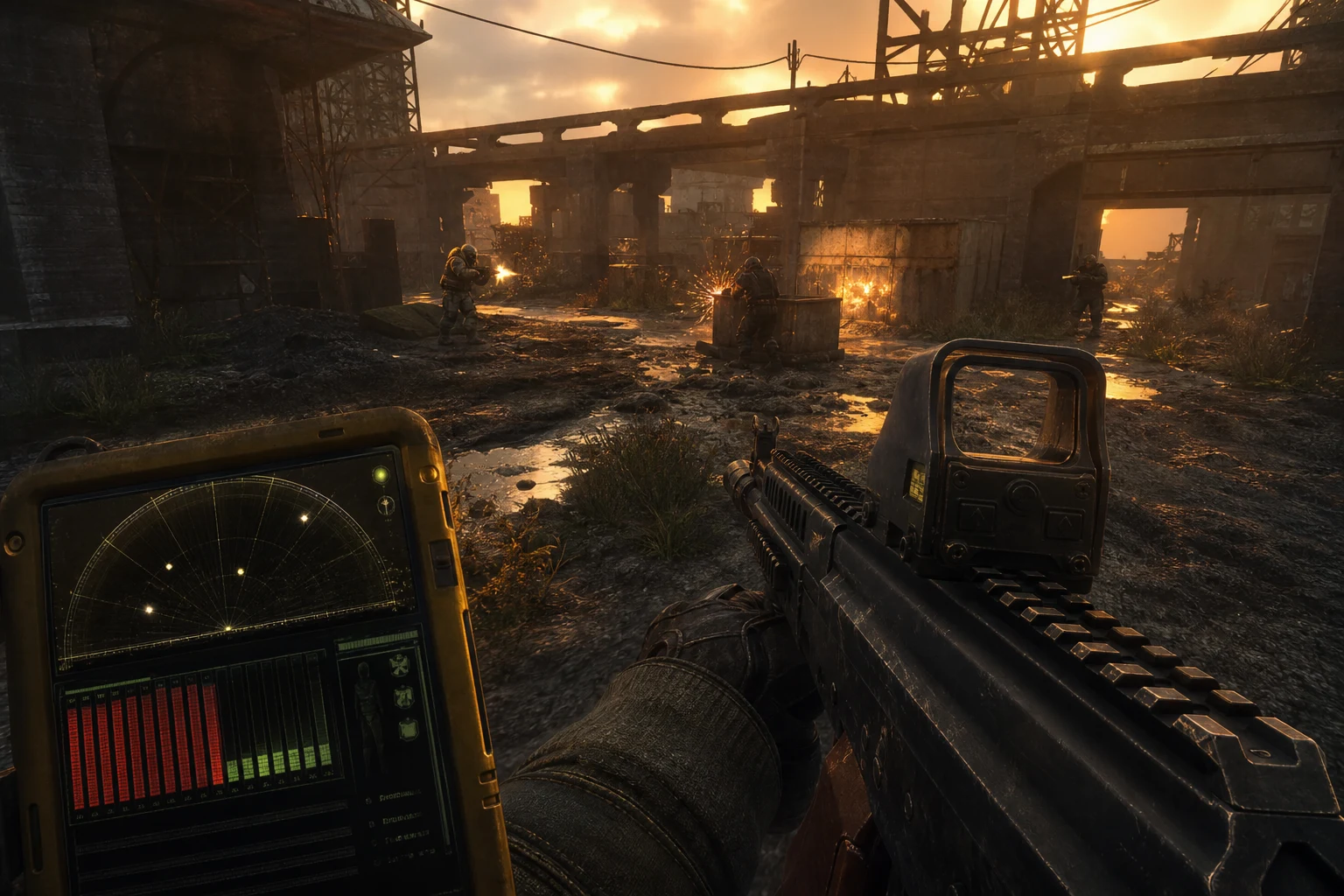
The radar module reflects real-time enemy positions onto the mini-map. Adjust radar size and opacity to match your HUD; the bottom-right corner of the screen is usually the least distracting location. Radar is essential for tracking enemy movement, especially in wide open areas or multi-story structures.
Step 7 — Aimbot Configuration
The aimbot module significantly improves your aiming precision. ForceCheat Stalcraft aimbot can be customized through parameters such as FOV (field of view), smoothing, target priority, and bone selection.
FOV and Smoothing Balance
FOV value determines the screen area where aimbot is active. A narrow FOV between 60–80 pixels locks only targets close to your crosshair and provides a much more natural appearance. Smoothing value controls how quickly the aim locks onto the target; a value between 5–8 provides smooth transitions instead of sudden jumps. Adjusting these two parameters together yields optimal results in both performance and appearance.
Target Priority and Bone Selection
Target priority setting determines which enemy you'll lock onto in scenarios with multiple enemies. "Closest enemy" or "lowest health" are the most common choices; in aggressive playstyle closest enemy is more functional, while in strategic play lowest health is better. For bone selection, while head deals maximum damage, chest provides a wider hit area, so choosing chest may be wise in long-range engagements.
Step 8 — Advanced Features and In-Game Optimization
After completing the basic setup, you can explore the advanced features offered by ForceCheat Stalcraft software. These features further widen the gap between a standard player and an equipped player.
Inventory and Item ESP
Stalcraft's economy largely depends on item collection. With item ESP active, you can see high-value weapons, armor, and rare materials on the map in real-time. By applying filters by item category, you can display only items of a specific quality level (for example, rare or legendary); this feature is extremely powerful for optimizing your resource gathering route.
No Recoil and No Spread
No recoil feature dramatically simplifies aim control, especially with fully automatic weapons. You'll feel the difference of this feature with the first bullet burst when using AK-type rifles in long-range engagements. No spread keeps bullet spread near zero, ensuring all bullets hit your aim point; this dual combination provides precision in mid-to-long range engagements that your opponents won't be able to counter.
If you're looking for similar advantages in games other than Stalcraft, check out our Valorant cheat category or PUBG Mobile cheat category; we offer specially developed solutions for each game.
Tips to Maximize Performance
You've installed the software and made basic settings; now let's move on to practical tips that will help you get the highest return from every session.
Compatibility with Game Graphics Settings
Keep in-game brightness and contrast values at medium level for ESP boxes to appear clearly. Excessively high brightness can wash out ESP colors. Reducing shadow quality to low or medium not only gains FPS but also helps ESP show targets behind walls more prominently.
Pre-Session Checklist
Before each gaming session, perform these checks: verify from the ForceCheat panel that the software is on the current version, confirm that antivirus exclusion is still active, launch the injector as administrator, and inject after the game reaches the main menu. Making this cycle a habit minimizes technical issues.
If you're interested in similar setup and usage guides, check out our Stalcraft Best Cheat Software Features: Top 10 List article and our 6 Ways to Improve Game Performance with Metin2 Cheats guide. We have comprehensive content for different game types.
Conclusion
Stalcraft is a challenging survival and PvP experience without the right tools. Wide maps, sudden enemy raids, and resource competition can make every session stressful and uncertain. ForceCheat Stalcraft software eliminates this uncertainty by keeping you one step ahead at all times.
The eight steps we covered in this guide — purchase and panel access, system preparation, antivirus management, injector setup, correct injection timing, ESP and radar settings, aimbot configuration, and advanced features — when applied together provide a fully optimized gaming experience. Each step forms the foundation for the next; that's why paying attention to the sequence is important.
Small touches like adjusting aimbot smoothing value to your playstyle, optimizing ESP color coding by map area, and keeping item filters active make big differences. For first-time users, starting with a daily license to find your own configuration, then switching to a monthly license is the smartest approach.
Visit our Stalcraft cheat category to see all our Stalcraft software options, current package prices, and feature lists. Our team releases updates quickly after new patches; regularly check your member panel to ensure you're always using the latest version. Good luck with your sessions!
Frequently Asked Questions (FAQ)
Which operating systems does ForceCheat Stalcraft software support?
ForceCheat Stalcraft software supports Windows 10 (64-bit, version 1903 and later) and Windows 11. 32-bit operating systems are not supported. Before running the software, ensure that .NET Framework 4.8 and Visual C++ Redistributable packages are up to date.
Does the software continue to work after Stalcraft updates?
When Stalcraft receives a major update, the software may temporarily become incompatible. The ForceCheat team releases updates as quickly as possible after each major patch. You can find current version information from your member panel or the ForceCheat Discord channel. When an update is released, simply download the new version from your panel and install it over the existing file.
What should I do if the game crashes during injection?
If the game crashes, the most common causes are: injecting too early (before the game fully loads), antivirus blocking the injector file, or the injector not running as administrator. First check the antivirus exclusion, then wait for the game to fully reach the main menu and try injection again. If the problem persists, contact ForceCheat support.
What FOV value should I set for aimbot?
FOV value depends on your personal playstyle. For narrow maps and close-range engagements, 40–60 pixels is ideal; for open areas and mid-to-long range engagements, 60–90 pixels is ideal. Very wide FOV values can increase the chance of locking onto unwanted targets. We recommend testing together with the smoothing value to find your own optimal point.
Does ForceCheat offer products for games other than Stalcraft?
Yes, ForceCheat offers specialized software for many popular games. Our Valorant cheat category and PUBG Mobile cheat category are among the most preferred. You can also explore our solutions for different game types by checking our The First Descendant Aimbot guide.
Can I receive a warning before my license expires?
Yes, you can see your license expiration date in your member panel. Additionally, ForceCheat sends a reminder message to your registered email address before the license expires. For uninterrupted use, you can renew your license before it expires or activate the automatic renewal option.
Share this post
Metin2 Cheats: 6 Ways to Boost Your Gaming Performance
Best Ways to Boost Performance in Rainbow Six Siege: 2026 Tier List Guide
// related posts
Related Posts
Marvel Rivals Aimbot Experience: The Path to Quick Wins
Discover how aimbot and other cheat tools work in Marvel Rivals, which features will give you the edge, and how to choose the right tool for your playstyle.
October 9, 2026
Rust ESP Map Control: Seeing Enemy Positions in Advance
Master map control in Rust using ESP to see enemy positions beforehand. Discover optimal settings, profiles, and strategies for dominating the game in this comprehensive guide.
October 8, 2026
PUBG Final Circle: Best Settings and Strategies to Win
Struggling in PUBG's final circle? Master the right cheat settings and configurations to turn every endgame in your favor. Complete guide to dominating the final zone.
October 8, 2026