
Ways to Improve Your Gaming Experience with Counter-Strike 2 Cheats
- Introduction: Why Boosting Performance in Counter-Strike 2 Matters So Much?
- Increasing In-Game Visibility with Console Commands
- Basic Commands for Netgraph and FPS Tracking
- Recommended Settings for Visual Clarity
- Graphics Settings: FPS and Visual Balance
- Graphics Priorities for Low Latency
- Launch Parameters (Launch Options)
- Crosshair Optimization: Increasing Aiming Precision
- Static vs. Dynamic Crosshair
- Color Selection and Map Compatibility
- Map Knowledge and Practice Methods
- Offline Practice: Workshop Maps
- Grenade Rotations: Numerical Examples
- Sound Management: Critical Advantage in Opponent Detection
- HRTF and Sound Profile Settings
- Headset Selection: Frequency Range Importance
- Economy Management and Round Strategy
- Basic Economy Rules
- Utility Priority
- Team Coordination and Communication
- Callout Language and Speed
- Radar Usage
- Conclusion
- Frequently Asked Questions (FAQ)
- How do you cheat in Counter-Strike?
- What is the most effective way to increase FPS in CS2?
- What crosshair settings in CS2 provide better aiming?
- Do sound settings really affect CS2 performance?
- Why is economy management so important in CS2?
- What is the fastest way to improve map knowledge?
- How is team coordination improved in CS2?
Introduction: Why Boosting Performance in Counter-Strike 2 Matters So Much?
Counter-Strike 2 has secured a solid place among competitive shooting games and has become a platform actively played by millions of players worldwide. The intense competitive environment the game offers forces every player to improve, react faster, and develop smarter strategies. In this context, there are various methods and tools available for players who want to increase their in-game performance.
Climbing to the top ranks in CS2 depends not only on reflex speed; it also relies on map knowledge, weapon mechanics, team coordination, and proper configuration of in-game settings. For a player to consistently perform well in their Prime account or Premier mode, they need to manage all these elements together. So what are the methods that simplify this equation and provide tangible advantages to the player?
In this guide, we will cover console commands, graphics and network settings, crosshair optimization, and map practice methods aimed at improving the Counter-Strike 2 gaming experience. We will also examine how tools that increase in-game awareness work and which approach is more suitable for which player profile. For every player who wants to get ahead in a competitive environment, this guide provides concrete and applicable information.
Since CS2 is a game that Valve continuously updates, the meta can change at any time. Weapon balance changes, map pool updates, and anti-cheat system modifications directly affect the game's dynamics. For this reason, staying current and adapting quickly are fundamental conditions for sustained success in a competitive environment. Which settings really make a difference, which console commands measurably increase performance, and how can you maximize in-game visibility? You will find the answers to all these questions in the sections below.
Summary: This guide comprehensively covers console commands, graphics/network settings, crosshair configuration, and map practice methods for players who want to boost performance in Counter-Strike 2. Practical and concrete information is provided for those seeking an advantage in a competitive environment.
Increasing In-Game Visibility with Console Commands
Console commands in CS2 are powerful tools that allow you to go beyond the game's default settings. Knowing the right commands gives you tangible advantages in many areas, from seeing opponents more clearly to monitoring network latency.
Basic Commands for Netgraph and FPS Tracking
Monitoring your performance in real-time during gameplay allows you to detect problems early. The following commands are essential for this task:
cq_netgraph 1 — Displays ping, packet loss, and server tick information in the top right corner of the screen. It allows you to notice when you experience high ping or packet loss.
cl_showfps 1 (or 2 or 3 — for more detailed information) — Displays instant FPS value on screen. Useful for tracking whether your FPS remains stable on 128 tick servers.
net_graph 1 — Provides more comprehensive network statistics. Especially on 128 tick servers, monitoring choke and loss values helps you evaluate connection quality.
Recommended Settings for Visual Clarity
To see opponents faster and more clearly, you can try the following commands:
r_dynamic_lighting 0 — Turns off dynamic lighting; especially on low-to-mid system configurations, it provides both FPS gains and helps opponents appear more prominent in dark corners.
gamma 1.6 — Increases screen brightness to improve visibility in dark areas. It makes a difference in dimly lit areas like Mirage's tunnel passages or Nuke's interior spaces.
mat_monitorgamma 1.6 — Adjusts the gamma value directly at the engine level and produces more consistent results on some systems.
Graphics Settings: FPS and Visual Balance
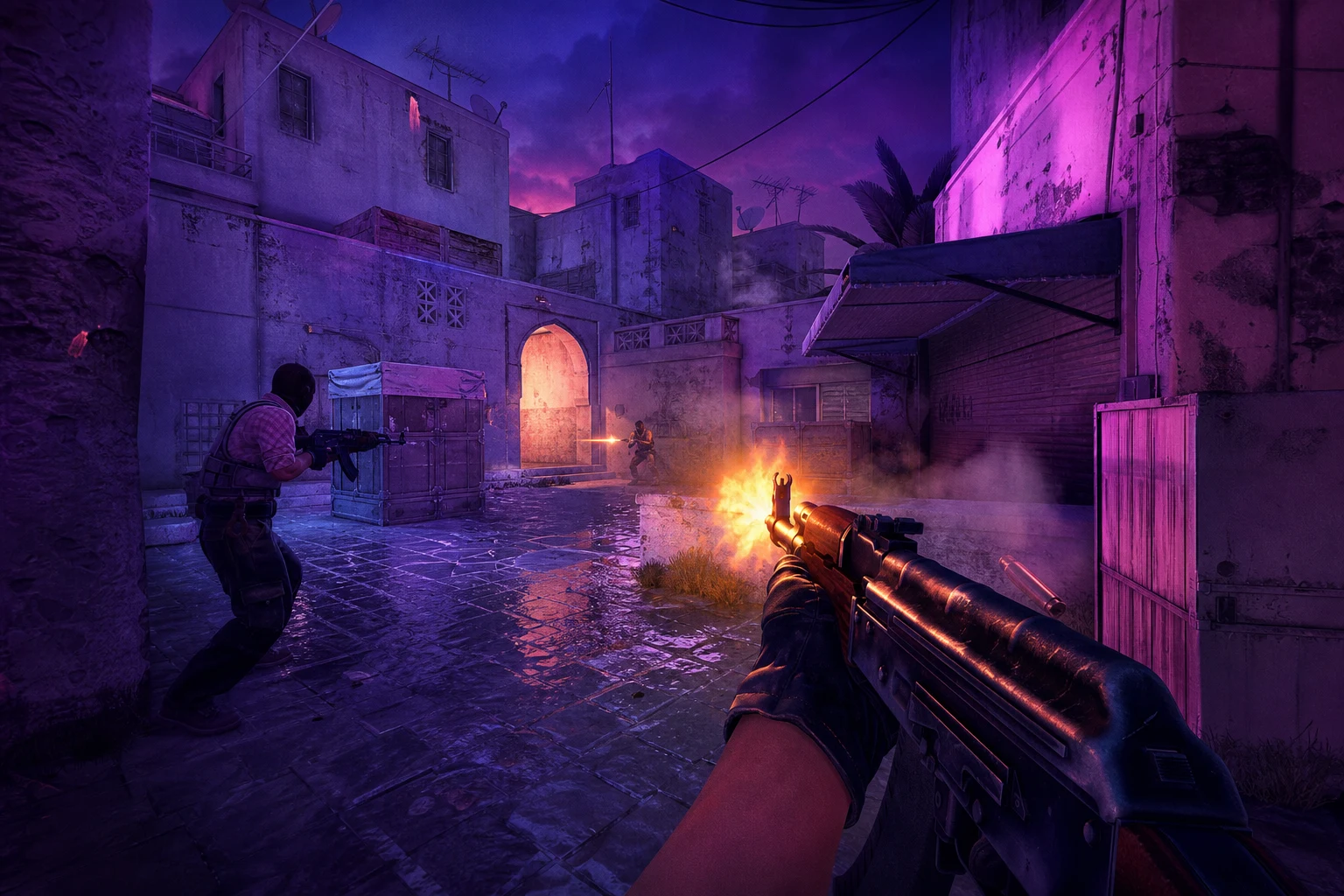
In CS2, high FPS not only provides a smooth experience; it also means lower input lag, which directly affects your aiming performance. For a player on a 240 Hz monitor, dropping below 240 FPS creates a potential disadvantage.
Graphics Priorities for Low Latency
When optimizing graphics settings, you need to maintain this balance: reduce visual quality to a level that doesn't make opponent detection difficult, but remove unnecessary details to free up your CPU/GPU.
Shadows: "Very Low" or completely disabled. Shadows can sometimes hide opponent positions and create high GPU load.
Model/Texture Detail: "Low" — Opponent models appear with lower detail in flat colors, which in some cases makes them easier to distinguish from the background.
Anti-Aliasing: "None" or "FXAA" — Heavy AA methods like MSAA seriously reduce FPS and are unnecessary in competitive play.
Motion Blur: Must be disabled. Image blur during fast movements negatively affects your reaction time.
Launch Parameters (Launch Options)
You can add the following parameters to the "Launch Options" section from the game's properties in Steam:
-novid — Skips the intro video, game opens faster.
-high — Runs the game with high processor priority in Windows.
-freq 240 (or your monitor's refresh rate) — Ensures the game recognizes the correct refresh rate.
+fps_max 0 — Removes the FPS limit, allowing you to get the maximum frames your hardware can produce.
Crosshair Optimization: Increasing Aiming Precision
Crosshair settings are one of the most personal and critical preferences in CS2. The vast majority of pro players stick to a specific crosshair profile for years; because muscle memory shapes itself according to this setting.
Static vs. Dynamic Crosshair
Dynamic crosshair expands when moving or firing — theoretically, this reflects accuracy feedback. However, in competitive play, most experienced players prefer static crosshair; because a fixed reference point makes aiming more predictable.
For static crosshair: cl_crosshairdot 0; cl_crosshairgap -2; cl_crosshairsize 2; cl_crosshairthickness 1; cl_crosshairstyle 4 — This combination provides a small and precise crosshair. You can achieve an even more centered look by pulling the gap value to -3.
Color Selection and Map Compatibility
Crosshair color should not conflict with the map palette. For Mirage's yellow-brown tones, green (cl_crosshaircolor 1) or light blue (cl_crosshaircolor 2) provide good contrast. On Inferno's orange-red textures, cyan (cl_crosshaircolor 5) stands out.
Thanks to the crosshair share code system, you can import your favorite pro player's crosshair with a single click. This is the most practical way to quickly test different styles before finding your own preference.
Map Knowledge and Practice Methods
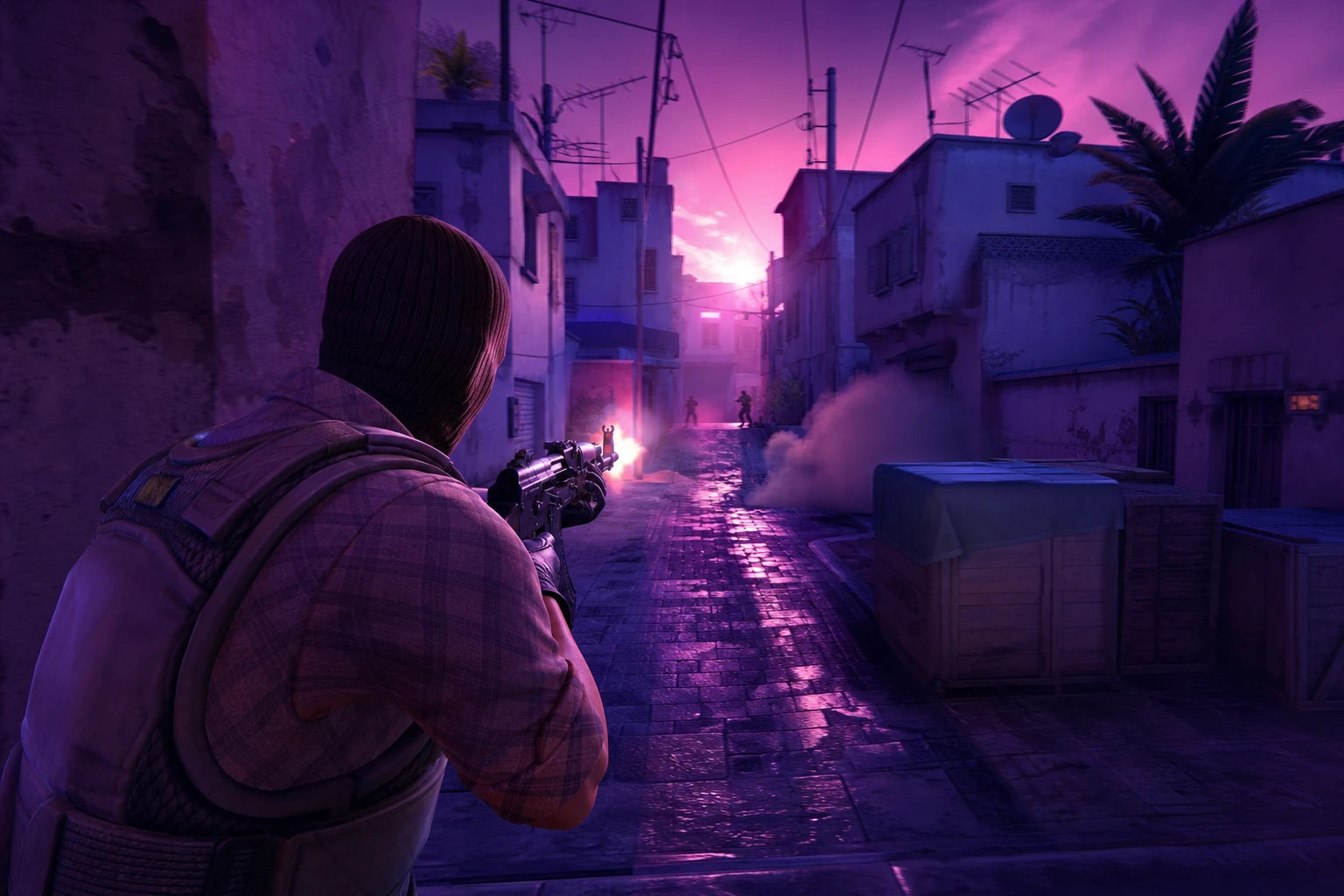
In CS2, map knowledge can be a more decisive factor than reflex speed. Holding the right angle at the right time; memorizing grenade rotations and managing economy correctly can dramatically increase your team's round win rate.
Offline Practice: Workshop Maps
Steam Workshop offers dozens of practice maps for CS2. The most commonly used ones are:
Aim Botz — This map spawns endless bots and is the standard for warm-up and aim routines. You can customize bot speed, health, and spawn areas.
Recoil Master — Teaches each weapon's recoil pattern by visualizing it. Practicing the AK-47's 30-round spray pattern here directly improves your control in matches.
Yprac Maps — Offers a comprehensive collection for map-based angle practice, flash and smoke positions.
Grenade Rotations: Numerical Examples
Standard smoke rotation for A bombsite at CT start on Mirage: Jungle smoke (closes T ramp), CT smoke (blocks approach from A short), and Stairs smoke (slows push from A main). These three smokes make A bombsite nearly impassable using only 3 utility.
On Inferno's B bombsite defense: Newbox smoke + CT smoke combination to close Banana allows you to defend B effectively with 2 CTs. Molotov timing in this position saves approximately 4-5 seconds.
Sound Management: Critical Advantage in Opponent Detection
CS2's sound engine provides extremely valuable information for detecting opponent movements. With the right headset and sound settings, you can determine your opponent's exact position from footstep sounds.
HRTF and Sound Profile Settings
CS2 supports HRTF (Head-Related Transfer Function). This feature improves 3D sound perception, allowing you to more accurately localize where footstep sounds are coming from. Enable the Sound → Enable HRTF option from the settings menu.
Sound level balance is critical: game sound high, music and UI sounds at zero. Keeping footstep sound level at maximum in particular allows you to notice B tunnel or vent movements early.
Headset Selection: Frequency Range Importance
For competitive CS2, headsets with precision in the 250 Hz – 8 kHz frequency range are ideal. Surround sound (7.1) simulation can sometimes provide less accurate directional information compared to stereo; for this reason, many pro players prefer playing in stereo mode. Test both modes on your own system to determine which provides clearer directional information.
Economy Management and Round Strategy
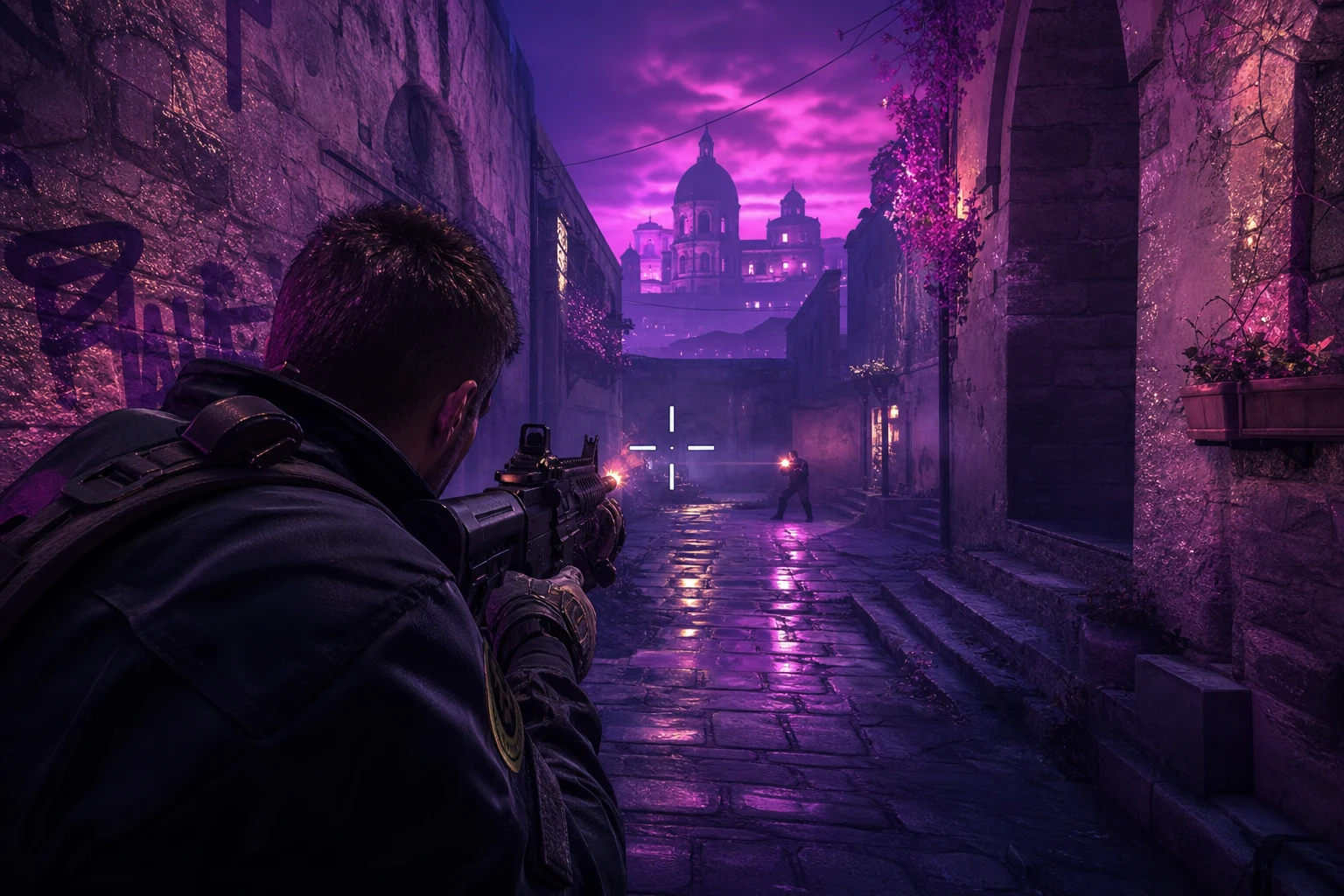
Managing economy correctly in CS2 is as important as individual performance. A wrong purchasing decision can put your team at a disadvantage for multiple rounds.
Basic Economy Rules
For a full buy round, aim for a minimum of $3,800 – $4,200 (AK-47/M4A4 + full kit + utility). If more than half your team is below this budget, playing an eco round instead of force buying and making a strong buy next round usually offers higher win probability.
Half-buy scenario: In the $2,000 – $2,800 budget range, the Galil/FAMAS + half kit combination increases round win chance by approximately 15-20% compared to full eco (varies depending on map and position).
Utility Priority
Slightly reducing weapon quality while getting full utility is often a smarter choice. A smoke + flash + molotov combination can fundamentally change round dynamics even if you use FAMAS instead of AK. Especially in pistol rounds, utility investment shapes the next round's economy.
Team Coordination and Communication
In competitive CS2, even the strongest individual player cannot produce results in an uncoordinated team. Effective communication directly affects round win rate.
Callout Language and Speed
Memorizing standard map callouts dramatically increases communication speed. Brief and clear notifications like "2 at A short, flashing" allow your teammates to position correctly. Minimizing unnecessary talk keeps the voice channel open for critical moments.
Radar Usage
You can optimize the radar for a wider map view with cl_radar_scale 0.3 and cl_radar_always_centered 0 commands. This allows you to read your teammates' positions and rotation needs much faster.
Conclusion
Improving performance in Counter-Strike 2 doesn't rely on a single magic formula; it depends on optimizing many interconnected elements together. From console commands to graphics settings, from crosshair configuration to map practice and economy management, every layer affects your overall game quality.
Rather than trying to apply all the methods we covered in this guide at once, we recommend focusing first on the areas that will have the greatest impact. FPS optimization and sound settings provide immediately noticeable improvements for almost every player. Crosshair and map knowledge are longer-term investments; but their returns compound exponentially.
Since CS2 meta constantly changes, staying current is just as important as technical settings. Follow Valve's weapon balance changes, map updates, and anti-cheat improvements, and shape your strategy accordingly. Sustained success in a competitive environment depends on your adaptation speed.
If you want to improve your performance in competitive games beyond CS2, check out our Valorant category and PUBG Mobile category. Additionally, you can explore various tools and software in our Counter-Strike 2 category that will take your gaming experience to the next level. We continue to provide comprehensive content for those who want to make a difference in the competitive gaming world.
For related reading, check out our Rainbow Six Siege Performance Boost Tier List Guide and 6 Ways to Improve Metin2 Gaming Performance articles.
Frequently Asked Questions (FAQ)
How do you cheat in Counter-Strike?
The concept of "cheating" in CS2 can have different meanings. You can perform legal optimizations through console commands and in-game settings; these are tools provided by the game's own system. Optimizing graphics, sound, and crosshair settings, practicing maps, and learning economy management can significantly boost your performance. For more advanced tools and software, check out our CS2 category.
What is the most effective way to increase FPS in CS2?
Lowering graphics settings (especially shadows and anti-aliasing), adding -high +fps_max 0 to launch parameters, and closing unnecessary applications running in the background are the fastest ways to increase FPS. Additionally, the r_dynamic_lighting 0 command can also provide noticeable FPS gains.
What crosshair settings in CS2 provide better aiming?
A static, small-sized crosshair that contrasts with map colors generally produces the best results. The cl_crosshairstyle 4; cl_crosshairsize 2; cl_crosshairgap -2; cl_crosshairthickness 1 combination is a starting point preferred by many experienced players. Adjusting the color according to the map is also critical.
Do sound settings really affect CS2 performance?
Yes, significantly. Enabling HRTF and keeping footstep sound level at maximum makes it easier to detect opponent positions from footstep sounds. Muting music and UI sounds prevents you from missing important audio information. Proper headset selection and stereo mode can provide more accurate directional information compared to 7.1 simulation.
Why is economy management so important in CS2?
CS2 is an economy-based game; purchasing decisions in each round directly affect the next several rounds. A wrong force buy can cause the team to play with weak weapons for two to three rounds. Coordinated economy decisions across the team can increase round win rate by 20-30% regardless of individual performance.
What is the fastest way to improve map knowledge?
Steam Workshop maps (Aim Botz, Recoil Master, Yprac collection) are the most efficient tools for offline practice. Additionally, watching pro matches and paying attention to specific positions helps develop your map knowledge quickly. 15-20 minutes of dedicated daily practice provides measurable improvement within a few weeks.
How is team coordination improved in CS2?
Learning standard map callouts and maintaining brief, clear communication is the first step. Optimizing radar settings (cl_radar_scale 0.3) allows you to read your teammates' positions faster. Playing regularly with the same players and developing specific strategies together is the fastest way to improve coordination.
Share this post
Best Ways to Boost Performance in Rainbow Six Siege: 2026 Tier List Guide
Rainbow Six Siege ESP: Master Map Control and Enemy Positions
// related posts
Related Posts
Marvel Rivals Aimbot Experience: The Path to Quick Wins
Discover how aimbot and other cheat tools work in Marvel Rivals, which features will give you the edge, and how to choose the right tool for your playstyle.
October 9, 2026
Rust ESP Map Control: Seeing Enemy Positions in Advance
Master map control in Rust using ESP to see enemy positions beforehand. Discover optimal settings, profiles, and strategies for dominating the game in this comprehensive guide.
October 8, 2026
PUBG Final Circle: Best Settings and Strategies to Win
Struggling in PUBG's final circle? Master the right cheat settings and configurations to turn every endgame in your favor. Complete guide to dominating the final zone.
October 8, 2026